> ## Documentation Index
> Fetch the complete documentation index at: https://docs.bono.network/llms.txt
> Use this file to discover all available pages before exploring further.
# AutoDrafter
> Automatically generate entire documents section by section with AI
## What is AutoDrafter?
AutoDrafter lets Arbiter draft your entire document automatically, section by section, without you clicking through each one. Once you approve the outline, Arbiter works through every section sequentially - researching, drafting, and maintaining consistency throughout.
AutoDrafter is a **premium feature** available to Lawyer Monthly, Lawyer Annual, Teams Monthly, and Teams Annual subscribers.
## Where to Find the Toggle
The AutoDrafter toggle is at the **bottom of the chat interface**, next to the "Advanced Reasoning" toggle. It looks like this:
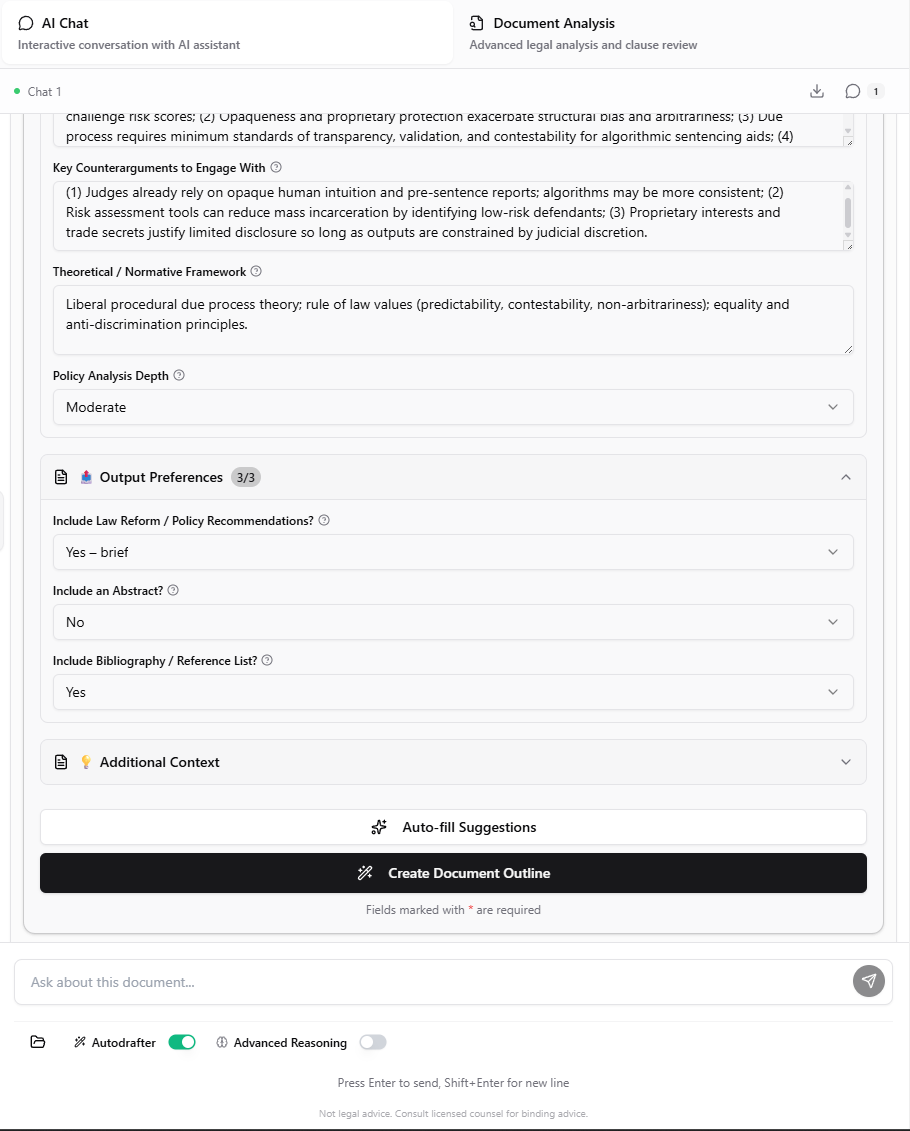 The AutoDrafter toggle only becomes active after Arbiter generates a document outline (blueprint). You won't be able to toggle it on until you've described your document and received an outline to approve.
## How AutoDrafter Works
Tell Arbiter what you need. Be specific about the document type, parties, key terms, and jurisdiction.
Arbiter asks clarifying questions in a form. Fill in the details - parties, terms, special requirements.
Once you click "Create Document Outline", Arbiter generates a section-by-section blueprint. Review it carefully. If you want changes, just type them in the chat - for example, "add a section on data protection" or "remove the non-compete section".
The AutoDrafter toggle only becomes active after Arbiter generates a document outline (blueprint). You won't be able to toggle it on until you've described your document and received an outline to approve.
## How AutoDrafter Works
Tell Arbiter what you need. Be specific about the document type, parties, key terms, and jurisdiction.
Arbiter asks clarifying questions in a form. Fill in the details - parties, terms, special requirements.
Once you click "Create Document Outline", Arbiter generates a section-by-section blueprint. Review it carefully. If you want changes, just type them in the chat - for example, "add a section on data protection" or "remove the non-compete section".
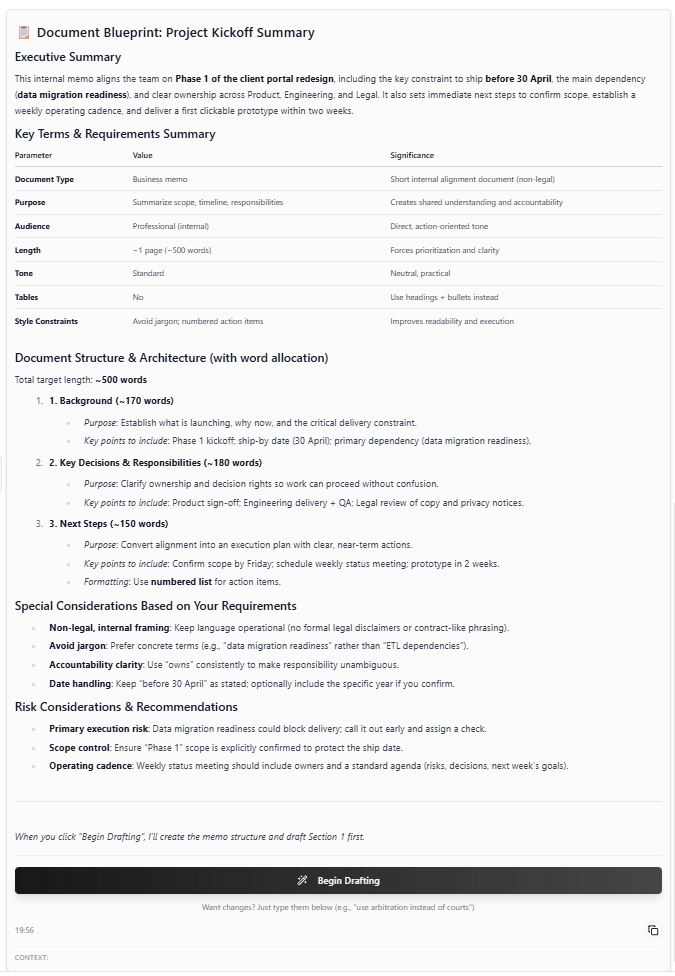 Before approving the outline, toggle on **AutoDrafter** at the bottom of the chat. This enables automatic drafting.
Approve the outline. With AutoDrafter on, Arbiter immediately begins drafting each section sequentially.
When all sections are complete, review and make any edits needed.
## Starting an AutoDraft Session
### Creating the Blueprint
First, describe your document to generate the outline:
```text theme={null}
Draft a master services agreement between a technology consulting firm
and a Fortune 500 retail client. Include provisions for scope of work,
project-based pricing, IP ownership, confidentiality, data security,
limitation of liability, and standard boilerplate. Governed by Delaware law.
```
Arbiter generates a complete outline:
1. Parties and Recitals
2. Definitions
3. Scope of Services
4. Project Orders/SOWs
5. Fees and Payment
6. Term and Termination
7. Intellectual Property
8. Confidentiality
9. Data Protection
10. Representations and Warranties
11. Indemnification
12. Limitation of Liability
13. Insurance
14. General Provisions
15. Signature Block
### Enabling AutoDrafter
Once Arbiter shows you the outline:
1. Look at the **bottom of the chat** for the AutoDrafter toggle (next to "Advanced Reasoning")
2. Toggle it **ON** (turns green)
3. Click **Approve** on the outline to start automatic drafting
You can also enable AutoDrafter before the outline is generated - just toggle it on anytime after filling in the requirements form. Arbiter will automatically start drafting once you approve the outline.
## During AutoDraft
### Progress Tracking
While AutoDrafter runs, you see:
* **Progress bar** - Overall completion percentage
* **Current section** - Which section is being drafted
* **Section statuses** - Pending, Drafting, Complete, or Error
* **Live content** - Watch text appear in the document
### Section Statuses
| Status | Meaning |
| ------------ | ----------------------------- |
| **Pending** | Section not yet started |
| **Drafting** | Currently being generated |
| **Complete** | Successfully drafted |
| **Error** | Generation failed (can retry) |
### Pause and Resume
You can control the AutoDraft process:
* **Pause** - Stop after current section completes
* **Resume** - Continue from where you paused
* **Stop** - End AutoDraft session entirely
Pausing lets you review and edit a section before continuing. AutoDrafter will pick up where it left off.
## Cross-Section Context Awareness
AutoDrafter maintains context across sections:
* **Defined Terms** - Terms defined in early sections are used consistently
* **Cross-References** - References to other sections stay accurate
* **Party Names** - Parties established in recitals are referenced correctly
* **Numbering** - Section and subsection numbering stays consistent
Each section is drafted with knowledge of what came before, ensuring the document reads as a coherent whole rather than disconnected parts.
## Editing During AutoDraft
You can edit previously drafted sections while AutoDraft continues:
1. Click on a completed section to edit
2. Make your changes in the editor
3. AutoDrafter continues drafting new sections
4. Future sections will incorporate your edits if relevant
Avoid making major structural changes during AutoDraft. Wait until completion for significant restructuring.
## After AutoDraft Completes
When all sections are drafted:
### Review the Document
* Read through the complete draft
* Check for consistency issues
* Verify defined terms are used correctly
* Ensure all provisions are appropriate
### Make Refinements
Use the document chat to request changes:
```text theme={null}
"Make the limitation of liability cap $5 million instead of $1 million"
```
```text theme={null}
"Add a non-solicitation provision in Section 14"
```
```text theme={null}
"Strengthen the indemnification to include gross negligence"
```
### Run Analysis
After editing, run Document Analysis to:
* Score the document for clarity, enforceability, and risk
* Identify potential issues
* Get AI suggestions for improvement
## Best Practices
Spend time on the initial description. The more detail you provide, the better AutoDrafter performs.
Pause after the first 2-3 sections to verify the direction. It's easier to course-correct early.
If you want specific defined terms, edit the Definitions section before AutoDrafter reaches later sections.
Unless you see major issues, let AutoDrafter complete before heavy editing. This preserves cross-section consistency.
## Token Usage
AutoDrafter uses tokens based on the complexity and length of your document:
| Document Type | Typical Cost |
| ---------------------------------- | -------------- |
| Simple NDA or short agreement | 20-50 tokens |
| Standard contract (10-15 sections) | 80-150 tokens |
| Complex agreement with research | 150-300 tokens |
## Troubleshooting
* Check your token balance
* Verify internet connection
* Click "Retry" on the failed section
* If persistent, try manually drafting that section
* Check if you accidentally paused
* Verify token balance wasn't depleted
* Check for browser issues
* Click "Resume" to continue
* This is a known editor limitation with inline citations
* The citations are correctly formatted in the underlying document
* Export to DOCX or PDF to see proper citation formatting
* You can also ask Arbiter to reformat citations in a specific style
* The toggle only activates after Arbiter generates an outline
* Complete the requirements form and click "Create Document Outline" first
* Verify you have a premium subscription
* Try refreshing the page if it still doesn't activate
## AutoDrafter vs. Manual Drafting
| Feature | AutoDrafter | Manual Drafting |
| ----------- | ----------------------------- | -------------------------- |
| Speed | \~5-10 minutes for full doc | Varies by section |
| Control | Pause anytime | Full control per section |
| Consistency | Automatic cross-referencing | Must track manually |
| Token cost | Higher (generates everything) | Lower (only what you need) |
| Best for | Complete first drafts | Iterative refinement |
## Combining with Templates
Use AutoDrafter with templates for maximum efficiency:
1. Load a template with your preferred structure
2. Enable AutoDrafter to fill in content
3. Template provides consistent section headings
4. AutoDrafter provides tailored content
## Next Steps
Learn the blueprint process
Create and use templates
Before approving the outline, toggle on **AutoDrafter** at the bottom of the chat. This enables automatic drafting.
Approve the outline. With AutoDrafter on, Arbiter immediately begins drafting each section sequentially.
When all sections are complete, review and make any edits needed.
## Starting an AutoDraft Session
### Creating the Blueprint
First, describe your document to generate the outline:
```text theme={null}
Draft a master services agreement between a technology consulting firm
and a Fortune 500 retail client. Include provisions for scope of work,
project-based pricing, IP ownership, confidentiality, data security,
limitation of liability, and standard boilerplate. Governed by Delaware law.
```
Arbiter generates a complete outline:
1. Parties and Recitals
2. Definitions
3. Scope of Services
4. Project Orders/SOWs
5. Fees and Payment
6. Term and Termination
7. Intellectual Property
8. Confidentiality
9. Data Protection
10. Representations and Warranties
11. Indemnification
12. Limitation of Liability
13. Insurance
14. General Provisions
15. Signature Block
### Enabling AutoDrafter
Once Arbiter shows you the outline:
1. Look at the **bottom of the chat** for the AutoDrafter toggle (next to "Advanced Reasoning")
2. Toggle it **ON** (turns green)
3. Click **Approve** on the outline to start automatic drafting
You can also enable AutoDrafter before the outline is generated - just toggle it on anytime after filling in the requirements form. Arbiter will automatically start drafting once you approve the outline.
## During AutoDraft
### Progress Tracking
While AutoDrafter runs, you see:
* **Progress bar** - Overall completion percentage
* **Current section** - Which section is being drafted
* **Section statuses** - Pending, Drafting, Complete, or Error
* **Live content** - Watch text appear in the document
### Section Statuses
| Status | Meaning |
| ------------ | ----------------------------- |
| **Pending** | Section not yet started |
| **Drafting** | Currently being generated |
| **Complete** | Successfully drafted |
| **Error** | Generation failed (can retry) |
### Pause and Resume
You can control the AutoDraft process:
* **Pause** - Stop after current section completes
* **Resume** - Continue from where you paused
* **Stop** - End AutoDraft session entirely
Pausing lets you review and edit a section before continuing. AutoDrafter will pick up where it left off.
## Cross-Section Context Awareness
AutoDrafter maintains context across sections:
* **Defined Terms** - Terms defined in early sections are used consistently
* **Cross-References** - References to other sections stay accurate
* **Party Names** - Parties established in recitals are referenced correctly
* **Numbering** - Section and subsection numbering stays consistent
Each section is drafted with knowledge of what came before, ensuring the document reads as a coherent whole rather than disconnected parts.
## Editing During AutoDraft
You can edit previously drafted sections while AutoDraft continues:
1. Click on a completed section to edit
2. Make your changes in the editor
3. AutoDrafter continues drafting new sections
4. Future sections will incorporate your edits if relevant
Avoid making major structural changes during AutoDraft. Wait until completion for significant restructuring.
## After AutoDraft Completes
When all sections are drafted:
### Review the Document
* Read through the complete draft
* Check for consistency issues
* Verify defined terms are used correctly
* Ensure all provisions are appropriate
### Make Refinements
Use the document chat to request changes:
```text theme={null}
"Make the limitation of liability cap $5 million instead of $1 million"
```
```text theme={null}
"Add a non-solicitation provision in Section 14"
```
```text theme={null}
"Strengthen the indemnification to include gross negligence"
```
### Run Analysis
After editing, run Document Analysis to:
* Score the document for clarity, enforceability, and risk
* Identify potential issues
* Get AI suggestions for improvement
## Best Practices
Spend time on the initial description. The more detail you provide, the better AutoDrafter performs.
Pause after the first 2-3 sections to verify the direction. It's easier to course-correct early.
If you want specific defined terms, edit the Definitions section before AutoDrafter reaches later sections.
Unless you see major issues, let AutoDrafter complete before heavy editing. This preserves cross-section consistency.
## Token Usage
AutoDrafter uses tokens based on the complexity and length of your document:
| Document Type | Typical Cost |
| ---------------------------------- | -------------- |
| Simple NDA or short agreement | 20-50 tokens |
| Standard contract (10-15 sections) | 80-150 tokens |
| Complex agreement with research | 150-300 tokens |
## Troubleshooting
* Check your token balance
* Verify internet connection
* Click "Retry" on the failed section
* If persistent, try manually drafting that section
* Check if you accidentally paused
* Verify token balance wasn't depleted
* Check for browser issues
* Click "Resume" to continue
* This is a known editor limitation with inline citations
* The citations are correctly formatted in the underlying document
* Export to DOCX or PDF to see proper citation formatting
* You can also ask Arbiter to reformat citations in a specific style
* The toggle only activates after Arbiter generates an outline
* Complete the requirements form and click "Create Document Outline" first
* Verify you have a premium subscription
* Try refreshing the page if it still doesn't activate
## AutoDrafter vs. Manual Drafting
| Feature | AutoDrafter | Manual Drafting |
| ----------- | ----------------------------- | -------------------------- |
| Speed | \~5-10 minutes for full doc | Varies by section |
| Control | Pause anytime | Full control per section |
| Consistency | Automatic cross-referencing | Must track manually |
| Token cost | Higher (generates everything) | Lower (only what you need) |
| Best for | Complete first drafts | Iterative refinement |
## Combining with Templates
Use AutoDrafter with templates for maximum efficiency:
1. Load a template with your preferred structure
2. Enable AutoDrafter to fill in content
3. Template provides consistent section headings
4. AutoDrafter provides tailored content
## Next Steps
Learn the blueprint process
Create and use templates