> ## Documentation Index
> Fetch the complete documentation index at: https://docs.bono.network/llms.txt
> Use this file to discover all available pages before exploring further.
# Document Canvas
> Edit, format, and enhance your documents with AI assistance
 ## What is the Canvas?
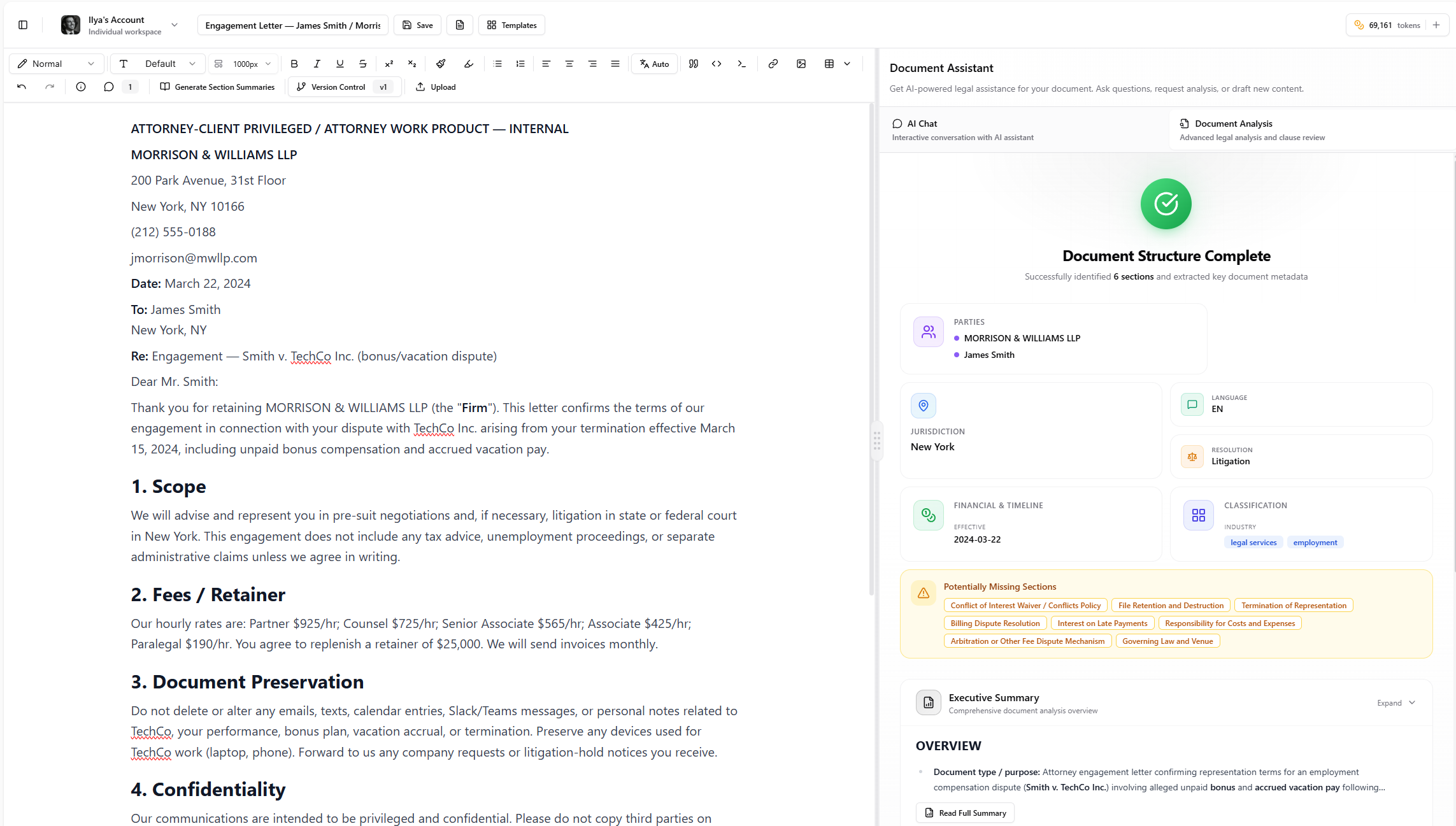
The Document Canvas is where you work with your documents in Arbiter. It's a rich text editor similar to Microsoft Word or Google Docs, but with AI capabilities built in. You can:
* Edit and format text like any word processor
* Right-click to access AI tools that improve your writing
* Upload documents by dragging them onto the canvas
* Track versions and compare changes over time
***
## The Toolbar
The toolbar at the top gives you quick access to formatting and tools.
### Text Style
| Control | What It Does |
| -------------------- | ------------------------------------------------------------------ |
| **Heading Dropdown** | Choose between Title, Subtitle, Heading 1-6, or Normal Text |
| **Font Dropdown** | Select font: Times New Roman, Arial, Georgia, Calibri, Courier New |
| **Width Dropdown** | Adjust document width from 400px (narrow) to full width |
Use **Heading 2** for major sections (like "Section 1. Definitions") and **Heading 3** for subsections. This helps Arbiter understand your document structure during analysis.
### Text Formatting
| Button | Shortcut | What It Does |
| ------------- | -------- | --------------------------- |
| **B** | Ctrl+B | Bold |
| **I** | Ctrl+I | Italic |
| **U** | Ctrl+U | Underline |
| **S** | - | Strikethrough |
| **x²** | - | Superscript (for footnotes) |
| **x₂** | - | Subscript |
| **A** (color) | - | Change text color |
| **Highlight** | - | Highlight text with color |
### Lists and Alignment
| Button | What It Does |
| ----------------------------------- | ------------------------------------------------------------ |
| **Bullet List** | Create a bulleted list |
| **Numbered List** | Create a numbered list (Tab to indent, Shift+Tab to outdent) |
| **Align Left/Center/Right/Justify** | Change text alignment |
### Text Direction
For documents in Hebrew, Arabic, or other right-to-left languages:
* **Auto** (recommended) - Arbiter detects the language automatically
* **LTR** - Force left-to-right
* **RTL** - Force right-to-left
### Insert Elements
| Button | What It Does |
| -------------- | -------------------------------------------- |
| **Quote** | Create a blockquote for emphasized text |
| **Code** | Format text as inline code |
| **Code Block** | Insert a code block with syntax highlighting |
| **Link** | Add a hyperlink |
| **Image** | Insert an image from URL |
| **Table** | Insert and manage tables |
### Tables
Click the Table button to access full table controls:
* **Insert Table** - Choose size (2x2 up to 5x5, or custom)
* **Add/Delete Rows** - Insert rows above or below
* **Add/Delete Columns** - Insert columns left or right
* **Merge/Split Cells** - Combine or divide cells
* **Toggle Headers** - Set header row or column
* **Delete Table** - Remove the entire table
### Other Tools
| Button | What It Does |
| --------------------- | --------------------------------------------------- |
| **Undo/Redo** | Undo or redo recent changes (Ctrl+Z / Ctrl+Y) |
| **Properties** | View document info (word count, reading time, type) |
| **Chats** | See all chat conversations for this document |
| **Section Summaries** | Generate or view AI summaries of each section |
| **Version Control** | Save versions and compare changes |
| **Upload** | Upload a document file |
| **Flags** | Show/hide analysis flags in the document |
***
## Right-Click Menu
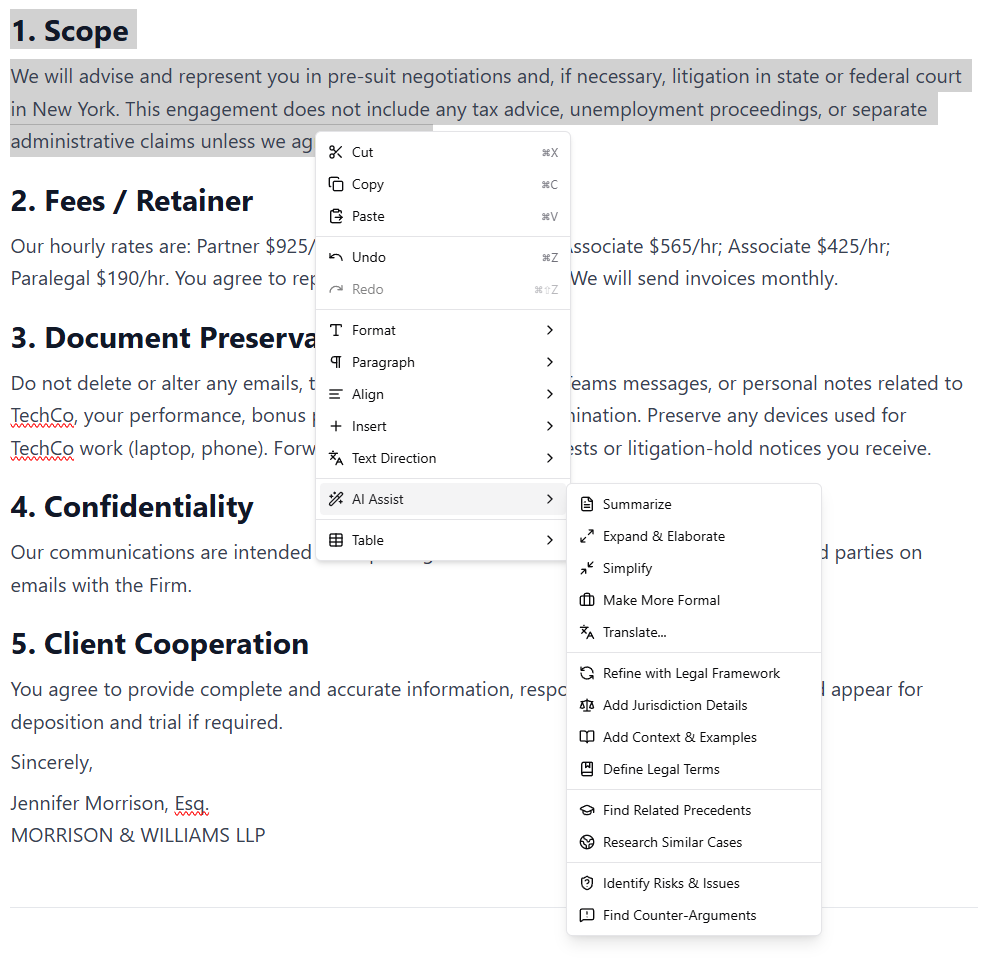
Right-click anywhere in the document to access a context menu with formatting options and AI tools.
## What is the Canvas?
The Document Canvas is where you work with your documents in Arbiter. It's a rich text editor similar to Microsoft Word or Google Docs, but with AI capabilities built in. You can:
* Edit and format text like any word processor
* Right-click to access AI tools that improve your writing
* Upload documents by dragging them onto the canvas
* Track versions and compare changes over time
***
## The Toolbar
The toolbar at the top gives you quick access to formatting and tools.
### Text Style
| Control | What It Does |
| -------------------- | ------------------------------------------------------------------ |
| **Heading Dropdown** | Choose between Title, Subtitle, Heading 1-6, or Normal Text |
| **Font Dropdown** | Select font: Times New Roman, Arial, Georgia, Calibri, Courier New |
| **Width Dropdown** | Adjust document width from 400px (narrow) to full width |
Use **Heading 2** for major sections (like "Section 1. Definitions") and **Heading 3** for subsections. This helps Arbiter understand your document structure during analysis.
### Text Formatting
| Button | Shortcut | What It Does |
| ------------- | -------- | --------------------------- |
| **B** | Ctrl+B | Bold |
| **I** | Ctrl+I | Italic |
| **U** | Ctrl+U | Underline |
| **S** | - | Strikethrough |
| **x²** | - | Superscript (for footnotes) |
| **x₂** | - | Subscript |
| **A** (color) | - | Change text color |
| **Highlight** | - | Highlight text with color |
### Lists and Alignment
| Button | What It Does |
| ----------------------------------- | ------------------------------------------------------------ |
| **Bullet List** | Create a bulleted list |
| **Numbered List** | Create a numbered list (Tab to indent, Shift+Tab to outdent) |
| **Align Left/Center/Right/Justify** | Change text alignment |
### Text Direction
For documents in Hebrew, Arabic, or other right-to-left languages:
* **Auto** (recommended) - Arbiter detects the language automatically
* **LTR** - Force left-to-right
* **RTL** - Force right-to-left
### Insert Elements
| Button | What It Does |
| -------------- | -------------------------------------------- |
| **Quote** | Create a blockquote for emphasized text |
| **Code** | Format text as inline code |
| **Code Block** | Insert a code block with syntax highlighting |
| **Link** | Add a hyperlink |
| **Image** | Insert an image from URL |
| **Table** | Insert and manage tables |
### Tables
Click the Table button to access full table controls:
* **Insert Table** - Choose size (2x2 up to 5x5, or custom)
* **Add/Delete Rows** - Insert rows above or below
* **Add/Delete Columns** - Insert columns left or right
* **Merge/Split Cells** - Combine or divide cells
* **Toggle Headers** - Set header row or column
* **Delete Table** - Remove the entire table
### Other Tools
| Button | What It Does |
| --------------------- | --------------------------------------------------- |
| **Undo/Redo** | Undo or redo recent changes (Ctrl+Z / Ctrl+Y) |
| **Properties** | View document info (word count, reading time, type) |
| **Chats** | See all chat conversations for this document |
| **Section Summaries** | Generate or view AI summaries of each section |
| **Version Control** | Save versions and compare changes |
| **Upload** | Upload a document file |
| **Flags** | Show/hide analysis flags in the document |
***
## Right-Click Menu
Right-click anywhere in the document to access a context menu with formatting options and AI tools.
 ### Standard Editing
* **Cut, Copy, Paste** - Standard clipboard operations
* **Undo, Redo** - Undo or redo changes
* **Format** - Bold, italic, underline, highlight, clear formatting
* **Paragraph** - Change to heading, list, or quote
* **Align** - Left, center, right, or justify
* **Insert** - Add links, images, or horizontal rules
* **Text Direction** - Set LTR, RTL, or auto
### AI Assist
The AI Assist menu lets you enhance selected text with AI. Select some text, right-click, and choose from:
**Writing Assistance**
| Option | What It Does |
| ---------------------- | ------------------------------------------------- |
| **Summarize** | Condense the selected text into a shorter summary |
| **Expand & Elaborate** | Add more detail and explanation |
| **Simplify** | Rewrite in simpler, clearer language |
| **Make More Formal** | Elevate the tone for professional documents |
| **Translate** | Translate into another language |
**Legal Enhancement**
| Option | What It Does |
| ------------------------------- | -------------------------------------------- |
| **Refine with Legal Framework** | Improve legal precision and terminology |
| **Add Jurisdiction Details** | Include jurisdiction-specific considerations |
| **Add Context & Examples** | Provide supporting context or examples |
| **Define Legal Terms** | Add definitions for legal terminology used |
**Legal Research**
| Option | What It Does |
| --------------------------- | ------------------------------- |
| **Find Related Precedents** | Search for relevant case law |
| **Research Similar Cases** | Look up similar legal scenarios |
**Risk Analysis**
| Option | What It Does |
| --------------------------- | ------------------------------------------- |
| **Identify Risks & Issues** | Flag potential legal risks in the selection |
| **Find Counter-Arguments** | Generate opposing arguments or weaknesses |
**Quick AI Editing**: Select a problematic clause, right-click, and choose "Simplify" to get a clearer version, or "Identify Risks & Issues" to see what might go wrong.
***
## Uploading Documents
You can bring existing documents into Arbiter in two ways:
### Drag and Drop
Simply drag a file from your computer onto the canvas. Arbiter accepts:
* **PDF** - Including scanned documents (OCR enabled)
* **DOC / DOCX** - Microsoft Word documents
* **TXT** - Plain text files
* **MD** - Markdown files
* **HTML** - Web pages
### Upload Button
Click the **Upload** button in the toolbar to open the file picker.
### What Happens During Upload
When you upload a document, Arbiter:
1. Extracts the text and preserves formatting
2. Identifies document structure (headings, sections, lists)
3. Detects tables and preserves their layout
4. Prepares the document for analysis
5. Opens it in the canvas ready for editing
A progress indicator shows you each step. Complex documents may take 30-60 seconds to process.
***
## Document Properties
Click the **Properties** button (info icon) in the toolbar to see:
* **Title** - Document name
* **Type** - Legal Contract, Brief, Memo, etc.
* **Language** - Detected document language
* **Word Count** - Total words in the document
* **Reading Time** - Estimated time to read
* **Created / Updated** - Timestamps
* **Version** - Current version number
You can change the document type here. Setting the correct type helps Arbiter provide better analysis and suggestions.
***
## Section Summaries
Click **Section Summaries** in the toolbar to:
1. **Generate Summaries** - Arbiter reads each section and creates a brief summary
2. **View Structure** - See your document's outline at a glance
3. **Navigate Sections** - Click any section to jump to it
4. **Download Summaries** - Export as a document outline
Summaries are categorized by type:
* **Deadlines** - Time-sensitive provisions
* **Restrictions** - Limitations and prohibitions
* **Obligations** - What each party must do
* **Rights** - What each party is entitled to
* **Definitions** - Key terms defined
***
## Version Control
Arbiter automatically saves versions of your document as you work.
### Automatic Versions
When you make significant changes (more than 50 characters), Arbiter saves an auto-version. These appear with an orange "Auto" badge.
### Manual Versions
Before major edits, click **Save Version** to create a checkpoint. These appear with a purple "Manual" badge. You can add a note describing what changed.
### Comparing Versions
1. Click the Version Control button in the toolbar
2. Select two versions to compare
3. See changes highlighted:
* **Green** - Text that was added
* **Red** - Text that was deleted
4. Click **Restore** on any version to revert to it
Restoring a version replaces your current document content. Save a manual version first if you want to preserve your current work.
***
## Analysis Flags
After running document analysis, you'll see flags highlighting issues in your document.
### Viewing Flags
* Click the **Flags** button in the toolbar to show/hide flags
* Flags appear as colored highlights in the text
* Click any flag to see details and suggested fixes
### Flag Importance
Use the importance slider in the Flags popover to filter what you see:
| Level | Color | Meaning |
| ------------ | ------ | --------------------------- |
| **Critical** | Red | Must address before signing |
| **High** | Orange | Significant issue |
| **Medium** | Yellow | Worth reviewing |
| **Low** | Green | Minor concern |
| **Minor** | Blue | Informational only |
### Flags Not in Text
Some issues relate to the document as a whole rather than specific text. These appear as a badge count next to the Flags button. Click to see what's missing or needs attention.
***
## Keyboard Shortcuts
### Text Formatting
| Shortcut | Action |
| -------- | --------- |
| Ctrl+B | Bold |
| Ctrl+I | Italic |
| Ctrl+U | Underline |
| Ctrl+Z | Undo |
| Ctrl+Y | Redo |
### Headings
| Shortcut | Action |
| ---------- | --------- |
| Ctrl+Alt+1 | Heading 1 |
| Ctrl+Alt+2 | Heading 2 |
| Ctrl+Alt+3 | Heading 3 |
### Lists
| Shortcut | Action |
| ------------ | ----------------- |
| Ctrl+Shift+8 | Bullet list |
| Ctrl+Shift+7 | Numbered list |
| Tab | Indent list item |
| Shift+Tab | Outdent list item |
### Text Direction
| Shortcut | Action |
| ------------ | ------------- |
| Ctrl+Shift+L | Left-to-right |
| Ctrl+Shift+R | Right-to-left |
| Ctrl+Shift+D | Auto-detect |
***
## Tips for Lawyers
Structure your document with H2 for major sections and H3 for subsections. This helps Arbiter analyze your document accurately and makes navigation easier.
Select any text and right-click to access AI tools. Need to simplify complex language? Identify risks? Find precedents? It's all in the right-click menu.
Before major revisions or sending a draft for review, save a manual version. This lets you easily compare changes or revert if needed.
For comfortable reading, try narrower widths (600-800px). For documents with wide tables, use wider settings or full width.
***
## Troubleshooting
* Check your internet connection
* Try refreshing the page
* Your work is auto-saved, but you can manually save a version to be sure
* Large PDFs (100+ pages) may take several minutes
* Scanned documents require OCR processing, which is slower
* Try breaking very large documents into smaller files
* Complex layouts may not convert perfectly
* Use the toolbar to fix any formatting issues
* Tables and basic formatting should preserve correctly
* Make sure you have text selected before right-clicking
* Check that you have tokens available
* Try refreshing the page if options are grayed out
* Run document analysis first (from the Analysis panel)
* Make sure the Flags button is toggled on
* Check the importance filter isn't hiding lower-priority flags
***
## Next Steps
Analyze your documents for risks and issues
Create new documents with AI assistance
Learn more about version history and comparison
See all available shortcuts
### Standard Editing
* **Cut, Copy, Paste** - Standard clipboard operations
* **Undo, Redo** - Undo or redo changes
* **Format** - Bold, italic, underline, highlight, clear formatting
* **Paragraph** - Change to heading, list, or quote
* **Align** - Left, center, right, or justify
* **Insert** - Add links, images, or horizontal rules
* **Text Direction** - Set LTR, RTL, or auto
### AI Assist
The AI Assist menu lets you enhance selected text with AI. Select some text, right-click, and choose from:
**Writing Assistance**
| Option | What It Does |
| ---------------------- | ------------------------------------------------- |
| **Summarize** | Condense the selected text into a shorter summary |
| **Expand & Elaborate** | Add more detail and explanation |
| **Simplify** | Rewrite in simpler, clearer language |
| **Make More Formal** | Elevate the tone for professional documents |
| **Translate** | Translate into another language |
**Legal Enhancement**
| Option | What It Does |
| ------------------------------- | -------------------------------------------- |
| **Refine with Legal Framework** | Improve legal precision and terminology |
| **Add Jurisdiction Details** | Include jurisdiction-specific considerations |
| **Add Context & Examples** | Provide supporting context or examples |
| **Define Legal Terms** | Add definitions for legal terminology used |
**Legal Research**
| Option | What It Does |
| --------------------------- | ------------------------------- |
| **Find Related Precedents** | Search for relevant case law |
| **Research Similar Cases** | Look up similar legal scenarios |
**Risk Analysis**
| Option | What It Does |
| --------------------------- | ------------------------------------------- |
| **Identify Risks & Issues** | Flag potential legal risks in the selection |
| **Find Counter-Arguments** | Generate opposing arguments or weaknesses |
**Quick AI Editing**: Select a problematic clause, right-click, and choose "Simplify" to get a clearer version, or "Identify Risks & Issues" to see what might go wrong.
***
## Uploading Documents
You can bring existing documents into Arbiter in two ways:
### Drag and Drop
Simply drag a file from your computer onto the canvas. Arbiter accepts:
* **PDF** - Including scanned documents (OCR enabled)
* **DOC / DOCX** - Microsoft Word documents
* **TXT** - Plain text files
* **MD** - Markdown files
* **HTML** - Web pages
### Upload Button
Click the **Upload** button in the toolbar to open the file picker.
### What Happens During Upload
When you upload a document, Arbiter:
1. Extracts the text and preserves formatting
2. Identifies document structure (headings, sections, lists)
3. Detects tables and preserves their layout
4. Prepares the document for analysis
5. Opens it in the canvas ready for editing
A progress indicator shows you each step. Complex documents may take 30-60 seconds to process.
***
## Document Properties
Click the **Properties** button (info icon) in the toolbar to see:
* **Title** - Document name
* **Type** - Legal Contract, Brief, Memo, etc.
* **Language** - Detected document language
* **Word Count** - Total words in the document
* **Reading Time** - Estimated time to read
* **Created / Updated** - Timestamps
* **Version** - Current version number
You can change the document type here. Setting the correct type helps Arbiter provide better analysis and suggestions.
***
## Section Summaries
Click **Section Summaries** in the toolbar to:
1. **Generate Summaries** - Arbiter reads each section and creates a brief summary
2. **View Structure** - See your document's outline at a glance
3. **Navigate Sections** - Click any section to jump to it
4. **Download Summaries** - Export as a document outline
Summaries are categorized by type:
* **Deadlines** - Time-sensitive provisions
* **Restrictions** - Limitations and prohibitions
* **Obligations** - What each party must do
* **Rights** - What each party is entitled to
* **Definitions** - Key terms defined
***
## Version Control
Arbiter automatically saves versions of your document as you work.
### Automatic Versions
When you make significant changes (more than 50 characters), Arbiter saves an auto-version. These appear with an orange "Auto" badge.
### Manual Versions
Before major edits, click **Save Version** to create a checkpoint. These appear with a purple "Manual" badge. You can add a note describing what changed.
### Comparing Versions
1. Click the Version Control button in the toolbar
2. Select two versions to compare
3. See changes highlighted:
* **Green** - Text that was added
* **Red** - Text that was deleted
4. Click **Restore** on any version to revert to it
Restoring a version replaces your current document content. Save a manual version first if you want to preserve your current work.
***
## Analysis Flags
After running document analysis, you'll see flags highlighting issues in your document.
### Viewing Flags
* Click the **Flags** button in the toolbar to show/hide flags
* Flags appear as colored highlights in the text
* Click any flag to see details and suggested fixes
### Flag Importance
Use the importance slider in the Flags popover to filter what you see:
| Level | Color | Meaning |
| ------------ | ------ | --------------------------- |
| **Critical** | Red | Must address before signing |
| **High** | Orange | Significant issue |
| **Medium** | Yellow | Worth reviewing |
| **Low** | Green | Minor concern |
| **Minor** | Blue | Informational only |
### Flags Not in Text
Some issues relate to the document as a whole rather than specific text. These appear as a badge count next to the Flags button. Click to see what's missing or needs attention.
***
## Keyboard Shortcuts
### Text Formatting
| Shortcut | Action |
| -------- | --------- |
| Ctrl+B | Bold |
| Ctrl+I | Italic |
| Ctrl+U | Underline |
| Ctrl+Z | Undo |
| Ctrl+Y | Redo |
### Headings
| Shortcut | Action |
| ---------- | --------- |
| Ctrl+Alt+1 | Heading 1 |
| Ctrl+Alt+2 | Heading 2 |
| Ctrl+Alt+3 | Heading 3 |
### Lists
| Shortcut | Action |
| ------------ | ----------------- |
| Ctrl+Shift+8 | Bullet list |
| Ctrl+Shift+7 | Numbered list |
| Tab | Indent list item |
| Shift+Tab | Outdent list item |
### Text Direction
| Shortcut | Action |
| ------------ | ------------- |
| Ctrl+Shift+L | Left-to-right |
| Ctrl+Shift+R | Right-to-left |
| Ctrl+Shift+D | Auto-detect |
***
## Tips for Lawyers
Structure your document with H2 for major sections and H3 for subsections. This helps Arbiter analyze your document accurately and makes navigation easier.
Select any text and right-click to access AI tools. Need to simplify complex language? Identify risks? Find precedents? It's all in the right-click menu.
Before major revisions or sending a draft for review, save a manual version. This lets you easily compare changes or revert if needed.
For comfortable reading, try narrower widths (600-800px). For documents with wide tables, use wider settings or full width.
***
## Troubleshooting
* Check your internet connection
* Try refreshing the page
* Your work is auto-saved, but you can manually save a version to be sure
* Large PDFs (100+ pages) may take several minutes
* Scanned documents require OCR processing, which is slower
* Try breaking very large documents into smaller files
* Complex layouts may not convert perfectly
* Use the toolbar to fix any formatting issues
* Tables and basic formatting should preserve correctly
* Make sure you have text selected before right-clicking
* Check that you have tokens available
* Try refreshing the page if options are grayed out
* Run document analysis first (from the Analysis panel)
* Make sure the Flags button is toggled on
* Check the importance filter isn't hiding lower-priority flags
***
## Next Steps
Analyze your documents for risks and issues
Create new documents with AI assistance
Learn more about version history and comparison
See all available shortcuts