> ## Documentation Index
> Fetch the complete documentation index at: https://docs.bono.network/llms.txt
> Use this file to discover all available pages before exploring further.
# Matter Mode
> Analyze hundreds of documents simultaneously with AI that maintains accuracy at scale
## The Challenge: Multi-Document Legal Work
Legal work rarely involves just one document. A typical M\&A deal might have 50+ agreements. A litigation matter could involve hundreds of discovery documents, pleadings, and deposition transcripts. Traditional AI tools struggle with this reality:
* **Context window limitations** - Most AI can only "see" one document at a time
* **Lost connections** - Cross-references between documents are missed
* **Inconsistent answers** - Asking the same question across documents yields fragmented responses
* **Manual synthesis** - You end up doing the hard work of connecting the dots
Matter Mode solves this by creating an intelligent workspace where Arbiter can reason across your entire document set simultaneously.
## How Matter Mode Works
When you create a matter and run the Intelligence Scan, Arbiter performs several operations that enable accurate multi-document analysis:
### 1. Document Intelligence Extraction
For each document in your matter, Arbiter performs a deep analysis that goes far beyond simple text extraction. The system builds a comprehensive understanding of what the document says, who the parties are, what obligations exist, and where potential risks lie. This intelligence layer means Arbiter can answer questions about your documents with the same contextual understanding a senior associate would have after thoroughly reviewing the file.
### 2. Matter Synthesis
Once individual documents are processed, Arbiter synthesizes intelligence across the entire corpus:
* **Aggregated parties** - Who appears across which documents, in what roles
* **Timeline construction** - Key dates and deadlines from all documents
* **Cross-reference mapping** - How documents refer to each other
* **Contradiction detection** - Conflicting terms or provisions between documents
* **Risk aggregation** - Matter-level risk assessment
### 3. Two-Pass Retrieval System
When you ask a question, Arbiter uses a sophisticated retrieval approach:
**Pass 1: Intelligent Filtering**
Using the extracted metadata and summaries, Arbiter identifies which documents are likely relevant to your query. This happens in milliseconds, even with hundreds of documents.
**Pass 2: Full Content Analysis**
For the relevant documents identified in Pass 1, Arbiter retrieves and analyzes the complete text, ensuring no detail is missed. This is how Arbiter maintains accuracy without being overwhelmed by volume.
This two-pass approach means Arbiter can handle matters with 100+ large documents while still finding the specific clause you need.
## Accessing Your Matters
Matters can be accessed from three locations:
### 1. Dashboard (Matter Library)
The Matter Library on your Dashboard shows all your matters at a glance:
* View matter status and readiness
* See document counts and workflow history
* Quick-access to Matter Explorer
* Create new matters
### 2. AI Research Mode
When you're in AI Research mode (the standalone chat interface), you can select a matter from the Matter Selector dropdown. Once selected:
* **All documents in that matter become context** for your research queries
* Arbiter can retrieve full text from any document when answering
* Cross-document questions are answered with citations to specific documents
* GitLaw research considers your matter's jurisdiction and practice area
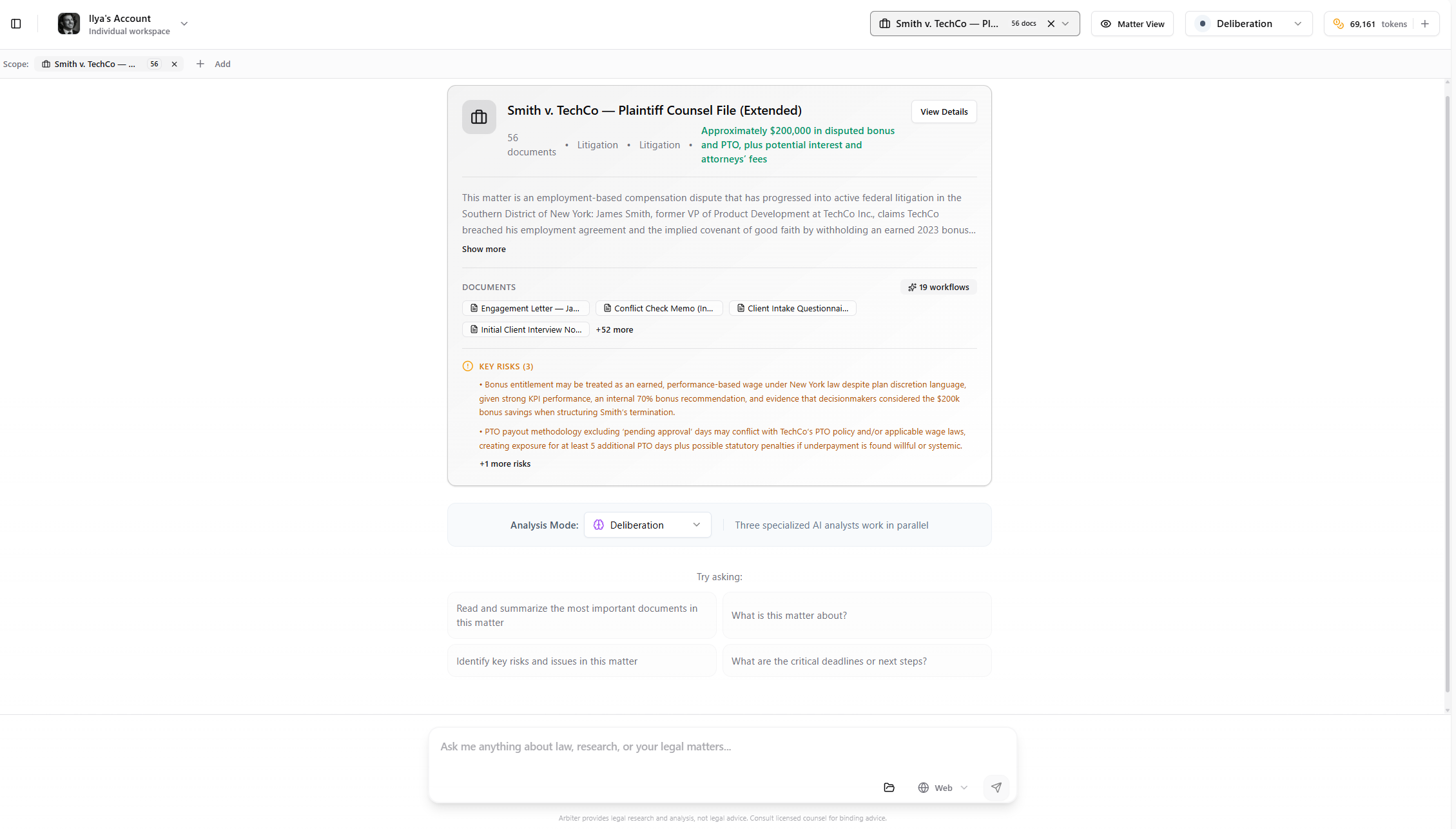
*A research chat with a prepared matter selected. Note the matter summary card, document list, identified risks, and suggested questions.*
To get the most out of Matter Mode in research, select your matter first, then ask questions. Arbiter will automatically consider all documents when formulating answers.
### 3. Matter Explorer (Full View)
Click "Open in Matter Explorer" from the Dashboard or Matter Library to access the comprehensive Matter view:
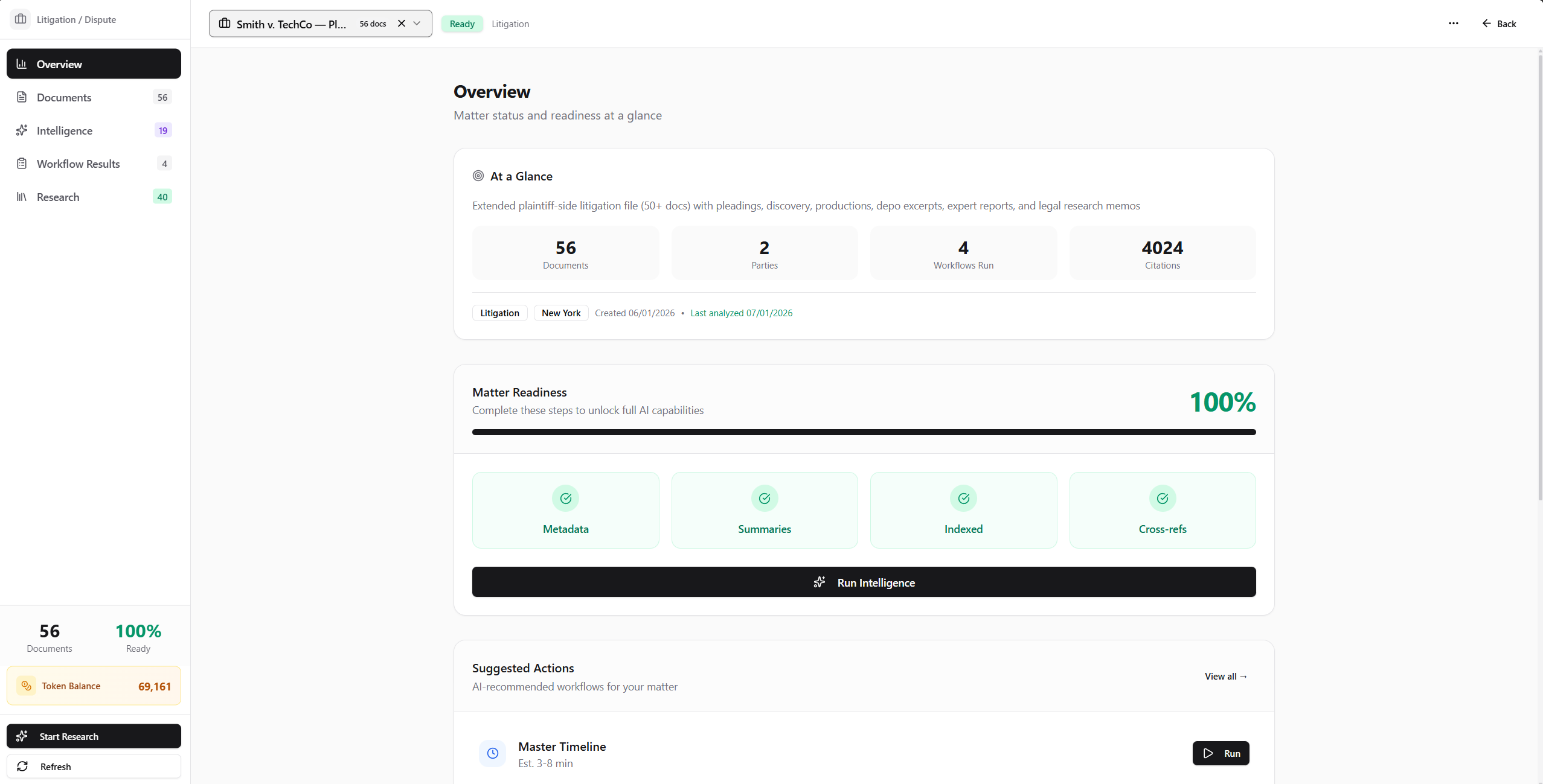 * Matter summary and AI-generated intelligence
* Readiness status with detailed breakdown
* Quick stats: documents, parties, workflows run, citations
* Extracted entities: parties, defined terms, key dates
* Suggested workflows based on matter type
* Complete list of all matter documents
* Analysis status for each document
* Download individual documents or all as ZIP
* Add or remove documents from the matter
* AI-generated matter synthesis
* Key risks across all documents
* Missing document recommendations
* Full workflow library with token estimates
* One-click workflow execution
* History of all workflows you've run
* View complete results from past analyses
* Re-export or reference previous findings
* Track what's been analyzed
* Matter-specific research queries
* Context-aware legal research (uses matter as background)
* Citation library for the matter
* Add manual research questions
## Creating a Matter
### Step-by-Step with the Matter Wizard
* Matter summary and AI-generated intelligence
* Readiness status with detailed breakdown
* Quick stats: documents, parties, workflows run, citations
* Extracted entities: parties, defined terms, key dates
* Suggested workflows based on matter type
* Complete list of all matter documents
* Analysis status for each document
* Download individual documents or all as ZIP
* Add or remove documents from the matter
* AI-generated matter synthesis
* Key risks across all documents
* Missing document recommendations
* Full workflow library with token estimates
* One-click workflow execution
* History of all workflows you've run
* View complete results from past analyses
* Re-export or reference previous findings
* Track what's been analyzed
* Matter-specific research queries
* Context-aware legal research (uses matter as background)
* Citation library for the matter
* Add manual research questions
## Creating a Matter
### Step-by-Step with the Matter Wizard
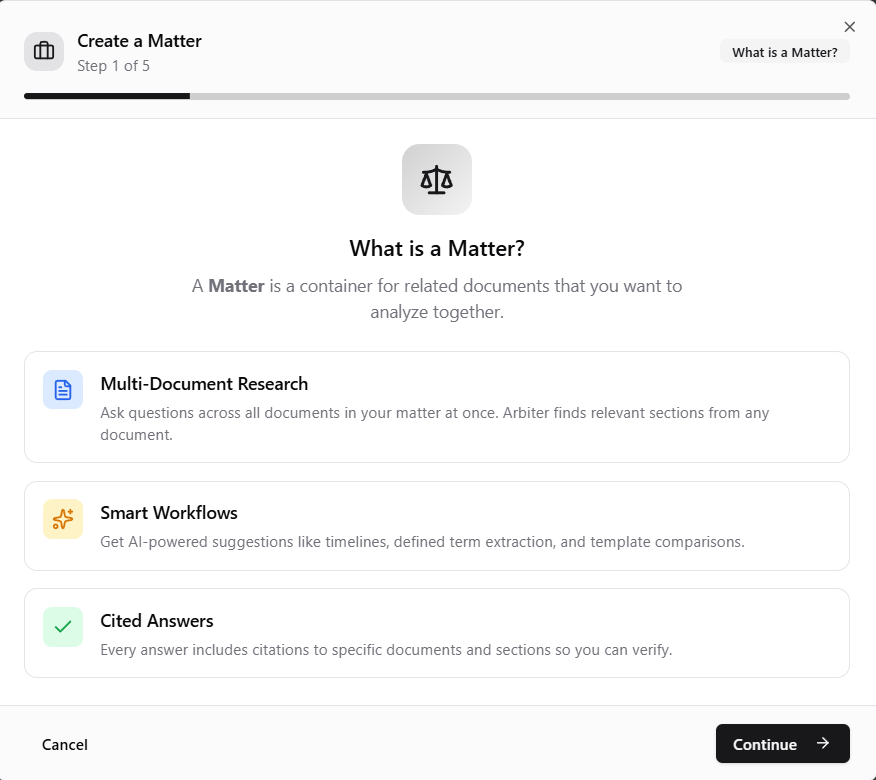
*The Matter Wizard guides you through creating a new matter in 5 steps.*
Click "Create Matter" from the Dashboard or sidebar. The wizard explains what a Matter is and its benefits.
Either:
* **Select from library** - Choose existing documents
* **Upload new files** - Add PDFs, Word docs, or text files (up to 100 files)
For PDFs, Arbiter auto-detects scanned documents and offers OCR.
Arbiter analyzes your documents and suggests:
* Matter name
* Practice area
* Description
* Key parties
* Jurisdiction
You can accept or modify these suggestions.
Select the type that best describes your matter:
| Type | Best For |
| ------------------------ | ------------------------------------- |
| **Deal / Transaction** | M\&A, financing, real estate closings |
| **Litigation / Dispute** | Lawsuits, arbitrations, discovery |
| **Compliance / Audit** | Regulatory reviews, due diligence |
| **Research Project** | Legal research, memo preparation |
| **Precedent Library** | Template collections, standard forms |
Confirm the details and create your matter. A folder is automatically created in your Document Library.
## Running Intelligence
Before using advanced workflows or matter context in research, run the Intelligence Scan:
Click on your matter from the Dashboard or Matter Library.
The Overview tab shows your matter's readiness score. Four indicators show what's complete:
* **Metadata** - Document types and parties identified
* **Summaries** - Executive summaries generated
* **Indexed** - Documents searchable for AI
* **Cross-refs** - Document relationships mapped
Click "Run Intelligence" to process any unanalyzed documents. This:
* Extracts metadata from new documents
* Generates executive summaries
* Builds the searchable index
* Identifies cross-references
Token cost is shown before you confirm.
Once all documents are analyzed, Arbiter automatically synthesizes matter-level intelligence:
* Overall matter summary
* Aggregated risk assessment
* Suggested workflows for your matter type
## Using Matter Context in Research
Once your matter is prepared, you can leverage it in AI Research:
1. **Open AI Research** from the sidebar
2. **Select your matter** from the dropdown at the top
3. **Ask questions** - Arbiter now has context from all documents
### Example Questions
**Cross-Document Queries:**
* "What are the termination rights across all agreements in this matter?"
* "Summarize the change of control provisions in each document"
* "Are there any conflicting definitions of 'Material Adverse Effect'?"
**Entity-Focused:**
* "What obligations does Acme Corp have across all documents?"
* "List all documents where the Seller has indemnification exposure"
**Timeline and Deadlines:**
* "What are all the notice periods and deadlines in this transaction?"
* "Create a closing checklist from all documents"
**Risk Analysis:**
* "What are the top 5 risks across this matter?"
* "Which documents have the most concerning liability provisions?"
When Arbiter answers a matter-context question, citations include the specific document name and section. Click a citation to jump directly to that document.
## Matter Workflows
Matter Mode unlocks 24 AI-powered workflows organized by use case:
### Core Workflows (All Matters)
| Workflow | What It Does | Time | Cost |
| ----------------------------------- | --------------------------------------- | -------- | --------------- |
| **Definition Consistency Analysis** | Compares defined terms across documents | 3-8 min | \~15/doc tokens |
| **Master Timeline** | Extracts and orders all dates | 8-15 min | \~12/doc tokens |
| **Entity Relationship Graph** | Maps parties and relationships | 3-8 min | \~8/doc tokens |
| **Contradiction Finder** | Identifies conflicting statements | 8-15 min | \~20/doc tokens |
| **Key Document Summary** | Highlights critical documents | 4-10 min | \~10/doc tokens |
| **Draft Document Recommendations** | Suggests documents to create | 3-8 min | \~5/doc tokens |
### Transactional / M\&A Workflows
| Workflow | What It Does | Time | Cost |
| ---------------------------------- | ---------------------------------------------- | -------- | --------------- |
| **Closing Checklist & Timeline** | Extracts conditions precedent and deliverables | 8-15 min | \~15/doc tokens |
| **Change of Control Consent List** | Maps consent requirements | 4-10 min | \~12/doc tokens |
| **Termination Rights Matrix** | Catalogs exit provisions | 4-10 min | \~12/doc tokens |
| **Efforts Standards Analysis** | Analyzes best/reasonable efforts | 4-10 min | \~10/doc tokens |
| **Template Deviation Check** | Compares against standards | 5-12 min | \~18/doc tokens |
| **Disclosure Verification** | Checks schedule completeness | 5-12 min | \~15/doc tokens |
### Litigation Workflows
| Workflow | What It Does | Time | Cost |
| --------------------------------- | --------------------------------------- | --------- | --------------- |
| **Claims & Defenses Matrix** | Maps legal positions | 5-12 min | \~15/doc tokens |
| **Damages Analysis** | Extracts damage theories | 5-12 min | \~15/doc tokens |
| **Witness Statement Matrix** | Cross-references testimony | 5-12 min | \~18/doc tokens |
| **Impeachment Material Finder** | Identifies inconsistencies in testimony | 10-20 min | \~25/doc tokens |
| **Discovery Response Tracker** | Tracks requests and responses | 5-12 min | \~12/doc tokens |
| **Legal Issues Tracker** | Maps legal issues across documents | 10-25 min | \~25/doc tokens |
| **Brief Citation Analysis** | Analyzes citations in briefs | 8-15 min | \~18/doc tokens |
| **Argument Summary & Comparison** | Compares arguments across parties | 8-15 min | \~20/doc tokens |
| **Case Deadline Calendar** | Extracts court deadlines | 4-10 min | \~8/doc tokens |
| **Privilege Log Helper** | Identifies potentially privileged docs | 10-25 min | \~25/doc tokens |
| **Expert Report Summary** | Summarizes expert reports | 5-12 min | \~15/doc tokens |
| **Settlement Position Analysis** | Tracks offers and positions | 5-12 min | \~12/doc tokens |
## Token Usage
Matter operations are designed to be efficient:
| Operation | Typical Cost |
| --------------------- | ----------------------------------------------------------------------------- |
| **Document Upload** | Free (Fast mode), or 5 tokens (OCR) |
| **Intelligence Scan** | Varies by matter size - can be a few hundred tokens or more for large matters |
| **Matter Synthesis** | \~20-50 tokens total |
| **Workflows** | Shown before running (see workflow tables above for per-document estimates) |
Token costs are always displayed before you run any operation. Intelligence Scan shows a detailed breakdown by document.
## Best Practices
Always run the Intelligence Scan before using matter context in research or running workflows. This indexes documents and enables accurate retrieval.
Group truly related documents. A focused 50-document matter performs better than a sprawling 300-document one.
Name matters consistently: "Client - Deal Name - Year" makes them easy to find later.
Review the readiness score before running expensive workflows. Some require full analysis first.
## Troubleshooting
Make sure you've:
1. Selected the matter from the dropdown (not just opened it)
2. Run the Intelligence Scan on the matter
3. Waited for processing to complete (check readiness score)
If readiness is below 100%, some documents may not be fully indexed.
Workflows require the Intelligence Scan to complete first:
* Check matter readiness in the Overview tab
* Run Intelligence if documents show "Pending" status
* Wait for all documents to reach "Analyzed" state
From the Matter Explorer:
1. Go to the Documents tab
2. Click "Add Documents" to upload new files or select from your library
3. Run Intelligence again to process the new documents
The new documents will be integrated into the existing matter synthesis automatically.
If a document isn't being found when you query the matter:
* Verify the document is in the matter (check Documents tab)
* Ensure the document was uploaded successfully (no errors)
* Run Intelligence to re-index if recently added
* Check that the document has content (not empty)
If Arbiter isn't finding something you expect:
* Rephrase your question with different terms
* Be more specific about what you're looking for
* Ask about specific document types or parties
* Check that relevant documents have been analyzed (not just uploaded)
## Next Steps
Deep dive into the 24 AI workflows available for matters
Learn how to use matter context in research sessions