> ## Documentation Index
> Fetch the complete documentation index at: https://docs.bono.network/llms.txt
> Use this file to discover all available pages before exploring further.
# OCR & Scanned Documents
> Process scanned PDFs, images, and documents with Optical Character Recognition
## Overview
Arbiter's OCR (Optical Character Recognition) processing extracts text from scanned documents, images, and PDFs that don't have selectable text. This enables full analysis and AI features on documents that would otherwise be unreadable.
**OCR Pricing:** 5 tokens per page (compared to 1 token per page for standard text-based documents).
## When to Use OCR
Use OCR processing for:
* **Scanned PDFs** - Documents scanned from paper
* **Image files** - Photos of documents (PNG, JPG, etc.)
* **Protected PDFs** - Some PDFs with restricted text selection
* **Old documents** - Archived materials in image format
### Automatic Detection
Arbiter automatically detects if a PDF likely needs OCR by analyzing:
* Text density per page
* Average words extracted
* Image-to-text ratio
When a document appears to be scanned (\< 20 words per page detected), Arbiter:
1. Alerts you that OCR may be needed
2. Automatically enables OCR option
3. Shows updated cost estimate
## Uploading Documents with OCR
### Single Document Upload
From dashboard or sidebar
Choose your PDF, image, or document
Arbiter shows if OCR is recommended:
* "Likely scanned document detected"
* "OCR recommended for best results"
Toggle OCR based on your needs:
* Enabled = Full text extraction (5 tokens/page)
* Disabled = Process as-is (1 token/page)
Review page count and total cost before proceeding
Click upload to begin processing
### Matter Upload with OCR
When uploading documents to a Matter:
Start the document addition process
Each file is analyzed individually
Configure OCR for each file:
* Auto-enabled for likely scanned documents
* Can override per file
See combined cost for all documents
Process all documents with configured settings
## OCR Processing Options
### Processing Modes
* Extracts text and identifies section structure
* Faster processing
* Lower cost
* Good for standard document analysis
* Complete text extraction with formatting
* Preserves tables and layouts
* Extracts attestations (signatures, stamps)
* Higher fidelity, longer processing
### Attestation Extraction
OCR in Full Processing mode identifies and extracts:
* **Signatures** - Handwritten signatures with location
* **Stamps** - Official stamps, seals, notary marks
* **Certifications** - Notary certificates, apostilles
* **Initials** - Page initials and annotations
These appear as special "attestation cards" in the document view.
Attestations are displayed in distinctive amber-themed cards with clear visual indicators showing what was detected and where.
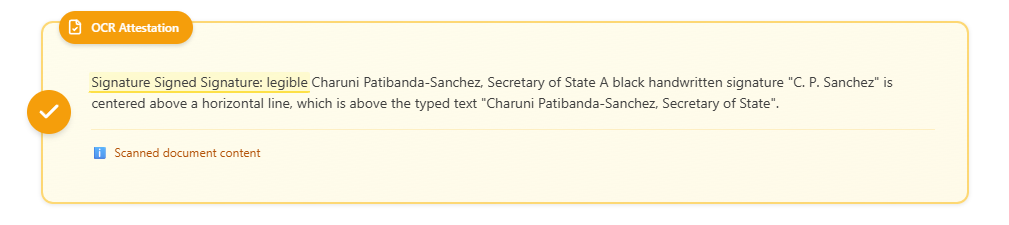
*An attestation card showing a detected signature with description of the signatory and signature style.*
## Understanding OCR Results
### Text Quality
OCR quality depends on:
| Factor | Impact |
| ---------------- | -------------------------------------- |
| **Scan quality** | Higher DPI = better results |
| **Document age** | Older/faded documents harder to read |
| **Font clarity** | Standard fonts easier than handwriting |
| **Contrast** | Good black/white contrast helps |
| **Skew** | Straight pages process better |
### Review Recommendations
After OCR processing:
1. **Spot-check critical sections** - Verify important text extracted correctly
2. **Check numbers and dates** - These are often OCR weak points
3. **Review parties and names** - Ensure proper nouns are correct
4. **Validate tables** - Complex tables may need manual review
Always review OCR'd documents for accuracy before relying on analysis results. OCR is highly accurate but not perfect.
## Cost Considerations
### Standard vs. OCR Processing
| Processing | Cost | Best For |
| ------------------- | -------- | ------------------------------------ |
| **Fast (Standard)** | Free | Digital documents with embedded text |
| **OCR** | 5 tokens | Scanned documents, images |
OCR processing costs 5 tokens per document, regardless of page count. This covers the AI-powered text extraction and cleanup.
### Pre-Upload Estimation
Arbiter shows costs before you upload:
* Whether the document requires OCR
* Total estimated cost
* Requires explicit confirmation before processing
## Troubleshooting
* Check original scan quality
* Try uploading a higher-resolution scan
* Some handwritten text may not OCR well
* Consider manual correction for critical sections
* Very faint text may not extract
* Multi-column layouts can be challenging
* Unusual fonts may have issues
* Ensure document isn't encrypted/protected
* Delete the document
* Re-upload with OCR enabled
* You cannot retroactively add OCR
* Large documents (100+ pages) take time
* Complex layouts slow processing
* High-resolution images take longer
* Typical: 1-2 minutes per 10 pages
* Ensure "Full Processing" mode was used
* Attestations must be clearly visible in scan
* Very stylized signatures may not detect
## Best Practices
300 DPI minimum for text documents. Higher resolution = better OCR accuracy.
Ensure documents are not skewed. Many scanners have auto-straightening features.
Good black text on white background works best. Avoid colored papers when possible.
Always manually verify numbers, dates, and party names after OCR processing.
## Supported File Types
### For OCR Processing
| Type | Extensions | Notes |
| ---------- | ------------------------------ | --------------------------- |
| **PDF** | .pdf | Scanned/image-based PDFs |
| **Images** | .png, .jpg, .jpeg, .gif, .webp | Photos of documents |
| **TIFF** | .tif, .tiff | Common for multi-page scans |
### Standard Processing (No OCR Needed)
| Type | Extensions |
| ------------- | ---------------------- |
| **PDF** | .pdf (with text layer) |
| **Word** | .docx, .doc |
| **Text** | .txt |
| **Rich Text** | .rtf |
## Next Steps
Analyze your OCR'd documents
Add scanned documents to matters