> ## Documentation Index
> Fetch the complete documentation index at: https://docs.bono.network/llms.txt
> Use this file to discover all available pages before exploring further.
# Version Control
> Git-style document versioning with automatic saves, comparisons, and history
## Overview
Arbiter's version control system tracks every change to your documents, allowing you to:
* See complete change history
* Compare any two versions side-by-side
* Restore previous versions instantly
* Track who made changes and when
Version control is automatic. Every significant change creates a new version without manual action.
## How Versioning Works
### Automatic Versioning
Arbiter automatically saves versions when:
* You make significant changes (>50 characters modified)
* The document is idle for 30 seconds after edits
* You navigate away from the document
* The session ends
Automatic versions are labeled with an **orange "Auto"** badge.
### Manual Versioning
You can create named versions at important milestones:
Use the keyboard shortcut **Ctrl/Cmd + S** or click "Save Version" in the menu
Describe what changed: "Final draft after client review"
Manual versions get a **purple "Manual"** badge
Create manual versions at key milestones: after initial draft, after each review cycle, before sending to counterparty.
## Viewing Version History
Click the menu icon (three dots) in the document header
Opens the version history panel
See all versions with:
* Timestamp (when created)
* Type (Auto or Manual)
* Author (who made changes)
* Word count change
* Version note (if manual)
### Version List
Each version shows:
| Field | Description |
| -------------- | -------------------------------- |
| **Timestamp** | When the version was created |
| **Type** | Auto (orange) or Manual (purple) |
| **Author** | Who made the changes |
| **Changes** | Summary of what changed |
| **Word Count** | Document length at this version |
## Comparing Versions
Compare any two versions to see exactly what changed:
Access from document menu
Click the checkbox next to each version you want to compare
Opens the comparison view
Changes are highlighted:
* **Green** = Additions
* **Red** = Deletions
### Comparison Views
Older version on left, newer on right. Changes highlighted in both.
Single view with deletions shown as strikethrough and additions highlighted.
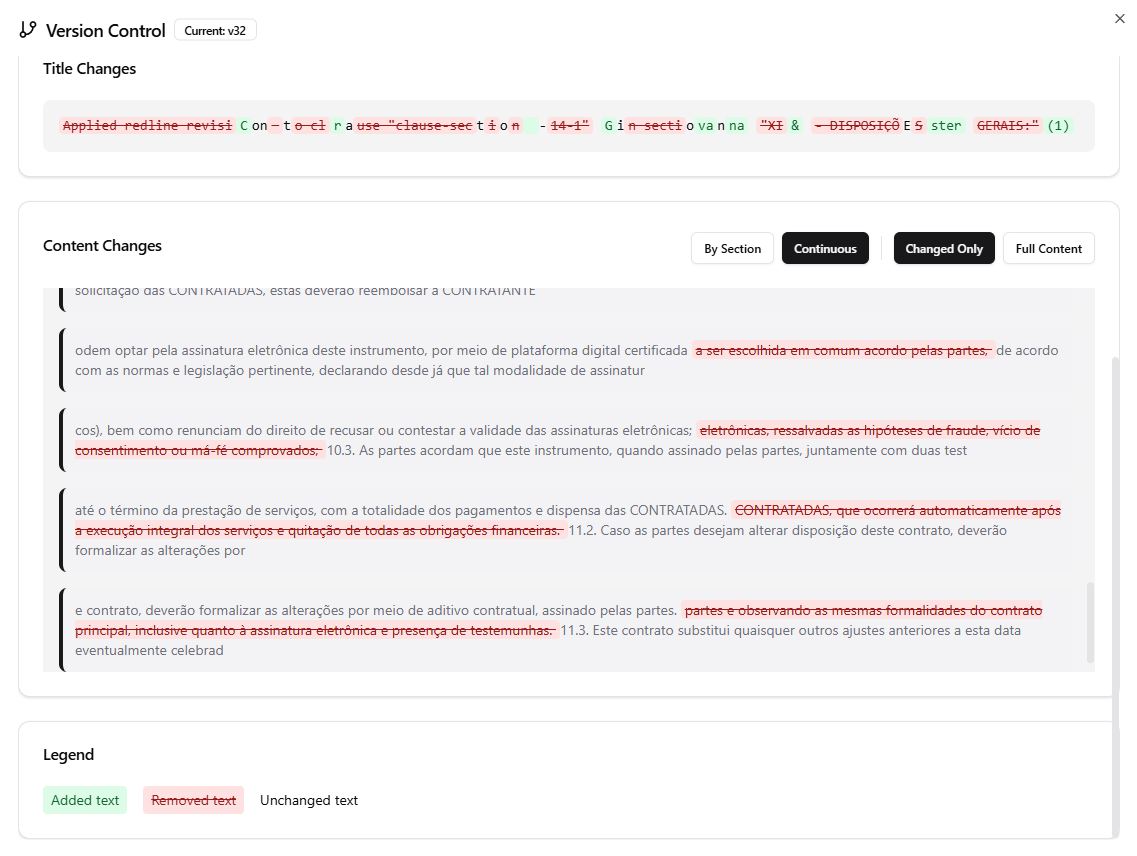
*The inline comparison view showing title changes, content changes by section, and a legend for added/removed text.*
## Restoring Previous Versions
To restore an earlier version:
Find the version you want to restore
Select "Restore this version"
Acknowledge that current content will be replaced
Document content reverts to selected version
Restoring creates a new version with the restored content. You don't lose any history, and you can always restore back to the version before restoration.
## Version Metadata
Each version captures:
* **Content** - Full document text at that point
* **Timestamp** - Exact time of version creation
* **Author** - User who made changes
* **Type** - Auto or Manual
* **Note** - User-provided description (manual only)
* **Word Count** - Document length
* **Character Count** - Detailed change metrics
## Best Practices
Create manual versions at key points: initial draft, post-review, final. This makes history easier to navigate.
"Final draft after Smith review" is more useful than "updated" when looking back months later.
Before accepting counterparty revisions, compare their version with your last to see exactly what changed.
Don't restore just to see old content. Use compare view first. Only restore when you actually want to revert.
## Version Control with Collaboration
When multiple people work on a document:
* Each person's changes create versions attributed to them
* Version history shows all collaborators' contributions
* Compare any two versions regardless of author
* Restore to any version (with appropriate permissions)
In shared documents, establish conventions: e.g., "Alice does review, creates manual version when done. Bob then takes over."
## Storage and Limits
* **Automatic versions:** Retained for 90 days
* **Manual versions:** Retained indefinitely
* **Version count:** No limit on number of versions
* **Storage:** Versions don't count against document limits
Automatic versions older than 90 days are cleaned up to save storage. Important versions should be marked as manual.
## Troubleshooting
* Check the date range filter
* Automatic versions may have been cleaned up (>90 days)
* Very small changes (under 50 chars) may not create versions
* Ensure stable internet connection
* Try refreshing the page
* Compare different versions to isolate the issue
* Check if you have edit permissions
* Verify the restore was confirmed
* Check version history (restoration creates a new version)
## Next Steps
Track changes and revisions
Full editing features