AutoDrafter lets Arbiter draft your entire document automatically, section by section, without you clicking through each one. Once you approve the outline, Arbiter works through every section sequentially - researching, drafting, and maintaining consistency throughout.
AutoDrafter is a premium feature available to Lawyer Monthly, Lawyer Annual, Teams Monthly, and Teams Annual subscribers.
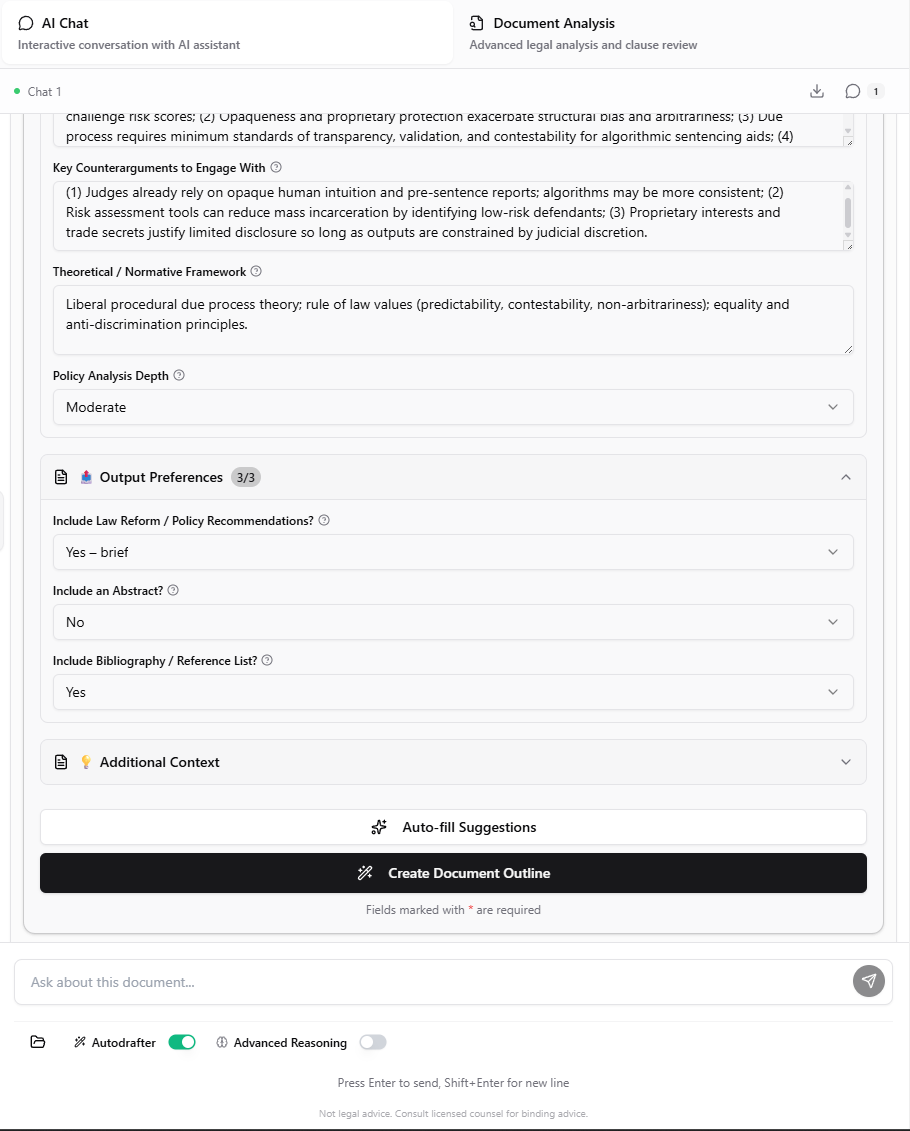
The AutoDrafter toggle is at the bottom of the chat interface, next to the “Advanced Reasoning” toggle. It looks like this:
The AutoDrafter toggle only becomes active after Arbiter generates a document outline (blueprint). You won’t be able to toggle it on until you’ve described your document and received an outline to approve.
Tell Arbiter what you need. Be specific about the document type, parties, key terms, and jurisdiction.
2
Fill In the Requirements Form
Arbiter asks clarifying questions in a form. Fill in the details - parties, terms, special requirements.
3
Review the Outline
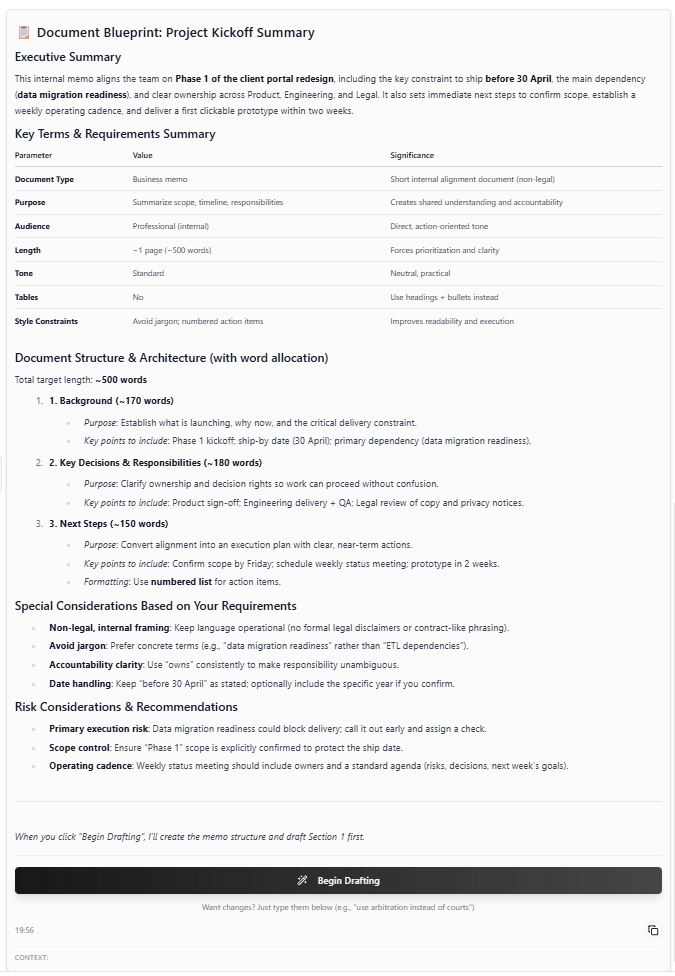
Once you click “Create Document Outline”, Arbiter generates a section-by-section blueprint. Review it carefully. If you want changes, just type them in the chat - for example, “add a section on data protection” or “remove the non-compete section”.
Example blueprint showing document structure, key terms, and the Begin Drafting button
4
Turn On AutoDrafter
Before approving the outline, toggle on AutoDrafter at the bottom of the chat. This enables automatic drafting.
5
Approve and Watch
Approve the outline. With AutoDrafter on, Arbiter immediately begins drafting each section sequentially.
6
Review the Finished Document
When all sections are complete, review and make any edits needed.
First, describe your document to generate the outline:
Draft a master services agreement between a technology consulting firm
and a Fortune 500 retail client. Include provisions for scope of work,
project-based pricing, IP ownership, confidentiality, data security,
limitation of liability, and standard boilerplate. Governed by Delaware law.
Look at the bottom of the chat for the AutoDrafter toggle (next to “Advanced Reasoning”)
Toggle it ON (turns green)
Click Approve on the outline to start automatic drafting
You can also enable AutoDrafter before the outline is generated - just toggle it on anytime after filling in the requirements form. Arbiter will automatically start drafting once you approve the outline.
{"docsConfig":{"theme":"mint","$schema":"https://mintlify.com/docs.json","name":"Arbiter Documentation","colors":{"primary":"#1e293b","light":"#475569","dark":"#0f172a"},"logo":{"light":"https://mintcdn.com/bononetwork/iesyQdBb07VQFOI9/logo/light.png?fit=max\u0026auto=format\u0026n=iesyQdBb07VQFOI9\u0026q=85\u0026s=cfa9c840425d4014bb9c43e65baca0c8","dark":"https://mintcdn.com/bononetwork/iesyQdBb07VQFOI9/logo/dark.png?fit=max\u0026auto=format\u0026n=iesyQdBb07VQFOI9\u0026q=85\u0026s=fbd68a4cc71f52b766d7428457d80656"},"favicon":"https://mintcdn.com/bononetwork/E3-2juDUFPFuoOdD/favicon.svg?fit=max\u0026auto=format\u0026n=E3-2juDUFPFuoOdD\u0026q=85\u0026s=b8af15fec729812ca1e04e01b6bbe406","navbar":{"links":[{"href":"https://arbiter.bono.network/support","label":"Support"},{"href":"https://status.bono.network","label":"Status"}],"primary":{"type":"button","label":"Launch Arbiter","href":"https://arbiter.bono.network"}},"footer":{"socials":{"x":"https://x.com/BonoNetwork","github":"https://github.com/BonoNetwork","linkedin":"https://www.linkedin.com/company/bononetwork","telegram":"https://t.me/Bononetwork","youtube":"https://www.youtube.com/@BonoNetworkOfficial","instagram":"https://www.instagram.com/bononetwork"}},"seo":{"metatags":{"og:site_name":"Arbiter Documentation","og:image":"/images/hero-light.png","og:locale":"en_US","twitter:card":"summary_large_image","twitter:site":"@BonoNetwork","author":"Bono Network","language":"en","category":"Legal Technology"},"indexing":"all"},"contextual":{"options":["copy","view","chatgpt","claude","perplexity","mcp","cursor","vscode"],"display":"header"},"styling":{"latex":true},"navigation":{"global":{"anchors":[{"anchor":"Trust Center","icon":"shield","href":"https://trust.bono.network"},{"anchor":"Status","icon":"signal","href":"https://status.bono.network"},{"anchor":"Support","icon":"headset","href":"https://arbiter.bono.network/support"}]},"pages":[]}},"deployment":{"deploymentMetadataValue":{"subdomain":"bononetwork","hasAudioNarration":false,"actualSubdomain":"bononetwork","customDomains":["docs.bono.network"],"gitSource":{"type":"github","owner":"bononetwork","repo":"arbiter-mvp","deployBranch":"main","contentDirectory":"mintlify-docs","isPrivate":true,"mountPath":"","label":""},"chroma":{"liveDeploymentHistoryId":"6a21e8d6328cd78292a542c8","collectionId":"756eb103-053e-4486-9f2e-936a8659accc","schemaVersion":"v2"},"feedback":{"thumbs":true,"edits":true,"issues":true},"entitlements":{},"buildId":"6a21e8d6328cd78292a542c8:success","clientVersion":"0.0.3926","searchFilterCounts":[{"language":"default","tag":"Guides","count":21},{"language":"default","tag":"Documents","count":5},{"language":"default","tag":"Advanced Features","count":4},{"language":"default","tag":"AI Research","count":3},{"language":"default","tag":"Resources","count":3},{"language":"default","tag":"Getting Started","count":3},{"language":"default","tag":"Matter Mode","count":2},{"language":"default","tag":"Partner API","count":1},{"language":"default","tag":"Overview","count":1},{"language":"default","tag":"Team Collaboration","count":1}]},"assistantConfig":{"enableAskAiButton":false,"enableStarterQuestions":false,"enableAskAiSearchBar":true},"hasChatPermissions":false,"hasWebMcpPermissions":false,"toggles":[{"name":"kill-isr","enabled":true,"variant":{"name":"disabled","enabled":false,"feature_enabled":true},"impressionData":false},{"name":"agent-mintlify-slack","enabled":true,"variant":{"name":"disabled","enabled":false,"feature_enabled":true},"impressionData":false},{"name":"editor-v7-file-tree","enabled":true,"variant":{"name":"disabled","enabled":false,"feature_enabled":true},"impressionData":false},{"name":"agent-integrations-settings","enabled":true,"variant":{"name":"disabled","enabled":false,"feature_enabled":true},"impressionData":false},{"name":"automations-pr-grouping","enabled":true,"variant":{"name":"disabled","enabled":false,"feature_enabled":true},"impressionData":false},{"name":"custom-prefix","enabled":true,"variant":{"name":"disabled","enabled":false,"feature_enabled":true},"impressionData":false},{"name":"analytics-v7","enabled":true,"variant":{"name":"disabled","enabled":false,"feature_enabled":true},"impressionData":false},{"name":"user-flows-analytics","enabled":true,"variant":{"name":"disabled","enabled":false,"feature_enabled":true},"impressionData":false},{"name":"no-publish-flow","enabled":true,"variant":{"name":"disabled","enabled":false,"feature_enabled":true},"impressionData":false},{"name":"workos-onboarding","enabled":true,"variant":{"name":"disabled","enabled":false,"feature_enabled":true},"impressionData":false},{"name":"llms-txt-v2","enabled":true,"variant":{"name":"disabled","enabled":false,"feature_enabled":true},"impressionData":false},{"name":"pause-universal-search-reconcile","enabled":true,"variant":{"name":"disabled","enabled":false,"feature_enabled":true},"impressionData":false},{"name":"snapshot-serving-live","enabled":true,"variant":{"name":"disabled","enabled":false,"feature_enabled":true},"impressionData":false},{"name":"stripTemperatureMiddleware","enabled":true,"variant":{"name":"disabled","enabled":false,"feature_enabled":true},"impressionData":false},{"name":"per-site-search-delta","enabled":true,"variant":{"name":"disabled","enabled":false,"feature_enabled":true},"impressionData":false},{"name":"support-platform-pylon-zendesk","enabled":true,"variant":{"name":"disabled","enabled":false,"feature_enabled":true},"impressionData":false},{"name":"snapshot-serving","enabled":true,"variant":{"name":"disabled","enabled":false,"feature_enabled":true},"impressionData":false},{"name":"instant-rollback","enabled":true,"variant":{"name":"disabled","enabled":false,"feature_enabled":true},"impressionData":false},{"name":"granular-notifications-server","enabled":true,"variant":{"name":"disabled","enabled":false,"feature_enabled":true},"impressionData":false},{"name":"granular-notifications","enabled":true,"variant":{"name":"disabled","enabled":false,"feature_enabled":true},"impressionData":false},{"name":"editor-private-page-search","enabled":true,"variant":{"name":"disabled","enabled":false,"feature_enabled":true},"impressionData":false},{"name":"automations-fable","enabled":true,"variant":{"name":"disabled","enabled":false,"feature_enabled":true},"impressionData":false},{"name":"fixed-ai-action-pricing","enabled":true,"variant":{"name":"disabled","enabled":false,"feature_enabled":true},"impressionData":false},{"name":"automation-resolve-merge-conflict","enabled":true,"variant":{"name":"disabled","enabled":false,"feature_enabled":true},"impressionData":false},{"name":"scoped-publishing","enabled":true,"variant":{"name":"disabled","enabled":false,"feature_enabled":true},"impressionData":false},{"name":"mintql","enabled":true,"variant":{"name":"disabled","enabled":false,"feature_enabled":true},"impressionData":false},{"name":"page-level-analytics","enabled":true,"variant":{"name":"disabled","enabled":false,"feature_enabled":true},"impressionData":false},{"name":"editor-version-history-v2","enabled":true,"variant":{"name":"disabled","enabled":false,"feature_enabled":true},"impressionData":false},{"name":"editor-nav-generations","enabled":true,"variant":{"name":"disabled","enabled":false,"feature_enabled":true},"impressionData":false},{"name":"billing-page-v2","enabled":true,"variant":{"name":"disabled","enabled":false,"feature_enabled":true},"impressionData":false},{"name":"vite-origin","enabled":true,"variant":{"name":"disabled","enabled":false,"feature_enabled":true},"impressionData":false},{"name":"workspace-projects","enabled":true,"variant":{"name":"disabled","enabled":false,"feature_enabled":true},"impressionData":false},{"name":"assistant-v5","enabled":true,"variant":{"name":"disabled","enabled":false,"feature_enabled":true},"impressionData":false},{"name":"byok-sep-25","enabled":true,"variant":{"name":"disabled","enabled":false,"feature_enabled":true},"impressionData":false},{"name":"fork-pr-previews","enabled":true,"variant":{"name":"disabled","enabled":false,"feature_enabled":true},"impressionData":false},{"name":"revalidation-jwt","enabled":true,"variant":{"name":"disabled","enabled":false,"feature_enabled":true},"impressionData":false},{"name":"editor-agent-model-picker","enabled":true,"variant":{"name":"disabled","enabled":false,"feature_enabled":true},"impressionData":false},{"name":"hobby-abuse-scan","enabled":true,"variant":{"name":"disabled","enabled":false,"feature_enabled":true},"impressionData":false},{"name":"dashboard-inbox","enabled":true,"variant":{"name":"disabled","enabled":false,"feature_enabled":true},"impressionData":false}],"isAtlas":false,"googleFontsInlined":false},"customCss":[],"page":{"pagePath":"guides/autodrafter","slug":"/guides/autodrafter","pageMetadata":{"title":"AutoDrafter","description":"Automatically generate entire documents section by section with AI","icon":"wand-magic-sparkles","href":"/guides/autodrafter","hidden":false},"description":{"compiledSource":"\"use strict\";\nconst {jsx: _jsx} = arguments[0];\nconst {useMDXComponents: _provideComponents} = arguments[0];\nfunction _createMdxContent(props) {\n const _components = {\n p: \"p\",\n ..._provideComponents(),\n ...props.components\n };\n return _jsx(_components.p, {\n children: \"Automatically generate entire documents section by section with AI\"\n });\n}\nfunction MDXContent(props = {}) {\n const {wrapper: MDXLayout} = {\n ..._provideComponents(),\n ...props.components\n };\n return MDXLayout ? _jsx(MDXLayout, {\n ...props,\n children: _jsx(_createMdxContent, {\n ...props\n })\n }) : _createMdxContent(props);\n}\nreturn {\n default: MDXContent\n};\n","frontmatter":{},"scope":{}},"pageType":"default","mdx":{"mdxSource":{"compiledSource":"\"use strict\";const{Fragment:_Fragment,jsx:_jsx,jsxs:_jsxs}=arguments[0];const{useMDXComponents:_provideComponents}=arguments[0];function _createMdxContent(props){const _components={code:`code`,li:`li`,ol:`ol`,p:`p`,pre:`pre`,span:`span`,strong:`strong`,tbody:`tbody`,td:`td`,th:`th`,thead:`thead`,tr:`tr`,ul:`ul`,..._provideComponents(),...props.components},{Accordion,AccordionGroup,Card,CardGroup,CodeBlock,Frame,Heading,Info,OptimizedImage,Step,Steps,Table,Tip,Warning}=_components;if(!Accordion)_missingMdxReference(`Accordion`,true);if(!AccordionGroup)_missingMdxReference(`AccordionGroup`,true);if(!Card)_missingMdxReference(`Card`,true);if(!CardGroup)_missingMdxReference(`CardGroup`,true);if(!CodeBlock)_missingMdxReference(`CodeBlock`,true);if(!Frame)_missingMdxReference(`Frame`,true);if(!Heading)_missingMdxReference(`Heading`,true);if(!Info)_missingMdxReference(`Info`,true);if(!OptimizedImage)_missingMdxReference(`OptimizedImage`,true);if(!Step)_missingMdxReference(`Step`,true);if(!Steps)_missingMdxReference(`Steps`,true);if(!Table)_missingMdxReference(`Table`,true);if(!Tip)_missingMdxReference(`Tip`,true);if(!Warning)_missingMdxReference(`Warning`,true);return _jsxs(_Fragment,{children:[_jsx(Heading,{level:`2`,id:`what-is-autodrafter`,children:`What is AutoDrafter?`}),`\n`,_jsx(_components.p,{children:`AutoDrafter lets Arbiter draft your entire document automatically, section by section, without you clicking through each one. Once you approve the outline, Arbiter works through every section sequentially - researching, drafting, and maintaining consistency throughout.`}),`\n`,_jsx(Info,{children:_jsxs(_components.p,{children:[`AutoDrafter is a `,_jsx(_components.strong,{children:`premium feature`}),` available to Lawyer Monthly, Lawyer Annual, Teams Monthly, and Teams Annual subscribers.`]})}),`\n`,_jsx(Heading,{level:`2`,id:`where-to-find-the-toggle`,children:`Where to Find the Toggle`}),`\n`,_jsxs(_components.p,{children:[`The AutoDrafter toggle is at the `,_jsx(_components.strong,{children:`bottom of the chat interface`}),`, next to the “Advanced Reasoning” toggle. It looks like this:`]}),`\n`,_jsx(Frame,{children:_jsx(OptimizedImage,{src:`https://mintcdn.com/bononetwork/iesyQdBb07VQFOI9/images/autodraft.png?fit=max\u0026auto=format\u0026n=iesyQdBb07VQFOI9\u0026q=85\u0026s=022b38773cbeb4b708861f9928259dd2`,alt:`AutoDrafter toggle location`,\"data-og-width\":`910`,width:`910`,\"data-og-height\":`1131`,height:`1131`,\"data-path\":`images/autodraft.png`,\"data-optimize\":`true`,\"data-opv\":`3`,srcset:`https://mintcdn.com/bononetwork/iesyQdBb07VQFOI9/images/autodraft.png?w=280\u0026fit=max\u0026auto=format\u0026n=iesyQdBb07VQFOI9\u0026q=85\u0026s=c649511d40a7f0bd7046165acd5a5f7b 280w, https://mintcdn.com/bononetwork/iesyQdBb07VQFOI9/images/autodraft.png?w=560\u0026fit=max\u0026auto=format\u0026n=iesyQdBb07VQFOI9\u0026q=85\u0026s=4f770cc59e43ef44d0eca3304c4c458a 560w, https://mintcdn.com/bononetwork/iesyQdBb07VQFOI9/images/autodraft.png?w=840\u0026fit=max\u0026auto=format\u0026n=iesyQdBb07VQFOI9\u0026q=85\u0026s=a13248a2bf29da4511f5b2eeb06be692 840w, https://mintcdn.com/bononetwork/iesyQdBb07VQFOI9/images/autodraft.png?w=1100\u0026fit=max\u0026auto=format\u0026n=iesyQdBb07VQFOI9\u0026q=85\u0026s=0f9fe098a8edf78f4057688d7ef94741 1100w, https://mintcdn.com/bononetwork/iesyQdBb07VQFOI9/images/autodraft.png?w=1650\u0026fit=max\u0026auto=format\u0026n=iesyQdBb07VQFOI9\u0026q=85\u0026s=ccd55983fc06a32f54fb3a97db5066b3 1650w, https://mintcdn.com/bononetwork/iesyQdBb07VQFOI9/images/autodraft.png?w=2500\u0026fit=max\u0026auto=format\u0026n=iesyQdBb07VQFOI9\u0026q=85\u0026s=9871d707d06b0c925d6925c51af5e768 2500w`})}),`\n`,_jsx(Warning,{children:_jsx(_components.p,{children:`The AutoDrafter toggle only becomes active after Arbiter generates a document outline (blueprint). You won’t be able to toggle it on until you’ve described your document and received an outline to approve.`})}),`\n`,_jsx(Heading,{level:`2`,id:`how-autodrafter-works`,children:`How AutoDrafter Works`}),`\n`,_jsxs(Steps,{children:[_jsx(Step,{title:`Describe Your Document`,children:_jsx(_components.p,{children:`Tell Arbiter what you need. Be specific about the document type, parties, key terms, and jurisdiction.`})}),_jsx(Step,{title:`Fill In the Requirements Form`,children:_jsx(_components.p,{children:`Arbiter asks clarifying questions in a form. Fill in the details - parties, terms, special requirements.`})}),_jsxs(Step,{title:`Review the Outline`,children:[_jsx(_components.p,{children:`Once you click “Create Document Outline”, Arbiter generates a section-by-section blueprint. Review it carefully. If you want changes, just type them in the chat - for example, “add a section on data protection” or “remove the non-compete section”.`}),_jsx(Frame,{caption:`Example blueprint showing document structure, key terms, and the Begin Drafting button`,children:_jsx(OptimizedImage,{src:`https://mintcdn.com/bononetwork/iesyQdBb07VQFOI9/images/blueprint.png?fit=max\u0026auto=format\u0026n=iesyQdBb07VQFOI9\u0026q=85\u0026s=cc6c3b0b75caed2939368ed094130470`,alt:`Document blueprint example`,\"data-og-width\":`675`,width:`675`,\"data-og-height\":`976`,height:`976`,\"data-path\":`images/blueprint.png`,\"data-optimize\":`true`,\"data-opv\":`3`,srcset:`https://mintcdn.com/bononetwork/iesyQdBb07VQFOI9/images/blueprint.png?w=280\u0026fit=max\u0026auto=format\u0026n=iesyQdBb07VQFOI9\u0026q=85\u0026s=8ff65f70b17122bd8d3b658cd5fbd463 280w, https://mintcdn.com/bononetwork/iesyQdBb07VQFOI9/images/blueprint.png?w=560\u0026fit=max\u0026auto=format\u0026n=iesyQdBb07VQFOI9\u0026q=85\u0026s=1bd8e8d018e38963114dbdfa60b6106b 560w, https://mintcdn.com/bononetwork/iesyQdBb07VQFOI9/images/blueprint.png?w=840\u0026fit=max\u0026auto=format\u0026n=iesyQdBb07VQFOI9\u0026q=85\u0026s=b71882469f232c0b3e7edff6ce6207d2 840w, https://mintcdn.com/bononetwork/iesyQdBb07VQFOI9/images/blueprint.png?w=1100\u0026fit=max\u0026auto=format\u0026n=iesyQdBb07VQFOI9\u0026q=85\u0026s=1b64d3dcfd67b9edac0683cd3f5fc033 1100w, https://mintcdn.com/bononetwork/iesyQdBb07VQFOI9/images/blueprint.png?w=1650\u0026fit=max\u0026auto=format\u0026n=iesyQdBb07VQFOI9\u0026q=85\u0026s=3869ca134393b41bae88268de5c569c9 1650w, https://mintcdn.com/bononetwork/iesyQdBb07VQFOI9/images/blueprint.png?w=2500\u0026fit=max\u0026auto=format\u0026n=iesyQdBb07VQFOI9\u0026q=85\u0026s=d8d20600662b9bd319ce5d1d37a23748 2500w`})})]}),_jsx(Step,{title:`Turn On AutoDrafter`,children:_jsxs(_components.p,{children:[`Before approving the outline, toggle on `,_jsx(_components.strong,{children:`AutoDrafter`}),` at the bottom of the chat. This enables automatic drafting.`]})}),_jsx(Step,{title:`Approve and Watch`,children:_jsx(_components.p,{children:`Approve the outline. With AutoDrafter on, Arbiter immediately begins drafting each section sequentially.`})}),_jsx(Step,{title:`Review the Finished Document`,children:_jsx(_components.p,{children:`When all sections are complete, review and make any edits needed.`})})]}),`\n`,_jsx(Heading,{level:`2`,id:`starting-an-autodraft-session`,children:`Starting an AutoDraft Session`}),`\n`,_jsx(Heading,{level:`3`,id:`creating-the-blueprint`,children:`Creating the Blueprint`}),`\n`,_jsx(_components.p,{children:`First, describe your document to generate the outline:`}),`\n`,_jsx(CodeBlock,{filename:``,numberOfLines:`5`,language:`text`,children:_jsx(_components.pre,{className:`shiki shiki-themes github-light-default dark-plus`,style:{backgroundColor:`#ffffff`,\"--shiki-dark-bg\":`#0B0C0E`,color:`#1f2328`,\"--shiki-dark\":`#D4D4D4`},language:`text`,children:_jsxs(_components.code,{language:`text`,numberOfLines:`5`,children:[_jsx(_components.span,{className:`line`,children:_jsx(_components.span,{children:`Draft a master services agreement between a technology consulting firm `})}),`\n`,_jsx(_components.span,{className:`line`,children:_jsx(_components.span,{children:`and a Fortune 500 retail client. Include provisions for scope of work, `})}),`\n`,_jsx(_components.span,{className:`line`,children:_jsx(_components.span,{children:`project-based pricing, IP ownership, confidentiality, data security, `})}),`\n`,_jsx(_components.span,{className:`line`,children:_jsx(_components.span,{children:`limitation of liability, and standard boilerplate. Governed by Delaware law.`})}),`\n`,_jsx(_components.span,{className:`line`,children:_jsx(_components.span,{})})]})})}),`\n`,_jsx(_components.p,{children:`Arbiter generates a complete outline:`}),`\n`,_jsxs(_components.ol,{children:[`\n`,_jsx(_components.li,{children:`Parties and Recitals`}),`\n`,_jsx(_components.li,{children:`Definitions`}),`\n`,_jsx(_components.li,{children:`Scope of Services`}),`\n`,_jsx(_components.li,{children:`Project Orders/SOWs`}),`\n`,_jsx(_components.li,{children:`Fees and Payment`}),`\n`,_jsx(_components.li,{children:`Term and Termination`}),`\n`,_jsx(_components.li,{children:`Intellectual Property`}),`\n`,_jsx(_components.li,{children:`Confidentiality`}),`\n`,_jsx(_components.li,{children:`Data Protection`}),`\n`,_jsx(_components.li,{children:`Representations and Warranties`}),`\n`,_jsx(_components.li,{children:`Indemnification`}),`\n`,_jsx(_components.li,{children:`Limitation of Liability`}),`\n`,_jsx(_components.li,{children:`Insurance`}),`\n`,_jsx(_components.li,{children:`General Provisions`}),`\n`,_jsx(_components.li,{children:`Signature Block`}),`\n`]}),`\n`,_jsx(Heading,{level:`3`,id:`enabling-autodrafter`,children:`Enabling AutoDrafter`}),`\n`,_jsx(_components.p,{children:`Once Arbiter shows you the outline:`}),`\n`,_jsxs(_components.ol,{children:[`\n`,_jsxs(_components.li,{children:[`Look at the `,_jsx(_components.strong,{children:`bottom of the chat`}),` for the AutoDrafter toggle (next to “Advanced Reasoning”)`]}),`\n`,_jsxs(_components.li,{children:[`Toggle it `,_jsx(_components.strong,{children:`ON`}),` (turns green)`]}),`\n`,_jsxs(_components.li,{children:[`Click `,_jsx(_components.strong,{children:`Approve`}),` on the outline to start automatic drafting`]}),`\n`]}),`\n`,_jsx(Tip,{children:_jsx(_components.p,{children:`You can also enable AutoDrafter before the outline is generated - just toggle it on anytime after filling in the requirements form. Arbiter will automatically start drafting once you approve the outline.`})}),`\n`,_jsx(Heading,{level:`2`,id:`during-autodraft`,children:`During AutoDraft`}),`\n`,_jsx(Heading,{level:`3`,id:`progress-tracking`,children:`Progress Tracking`}),`\n`,_jsx(_components.p,{children:`While AutoDrafter runs, you see:`}),`\n`,_jsxs(_components.ul,{children:[`\n`,_jsxs(_components.li,{children:[_jsx(_components.strong,{children:`Progress bar`}),` - Overall completion percentage`]}),`\n`,_jsxs(_components.li,{children:[_jsx(_components.strong,{children:`Current section`}),` - Which section is being drafted`]}),`\n`,_jsxs(_components.li,{children:[_jsx(_components.strong,{children:`Section statuses`}),` - Pending, Drafting, Complete, or Error`]}),`\n`,_jsxs(_components.li,{children:[_jsx(_components.strong,{children:`Live content`}),` - Watch text appear in the document`]}),`\n`]}),`\n`,_jsx(Heading,{level:`3`,id:`section-statuses`,children:`Section Statuses`}),`\n`,_jsxs(Table,{children:[_jsx(_components.thead,{children:_jsxs(_components.tr,{children:[_jsx(_components.th,{children:`Status`}),_jsx(_components.th,{children:`Meaning`})]})}),_jsxs(_components.tbody,{children:[_jsxs(_components.tr,{children:[_jsx(_components.td,{children:_jsx(_components.strong,{children:`Pending`})}),_jsx(_components.td,{children:`Section not yet started`})]}),_jsxs(_components.tr,{children:[_jsx(_components.td,{children:_jsx(_components.strong,{children:`Drafting`})}),_jsx(_components.td,{children:`Currently being generated`})]}),_jsxs(_components.tr,{children:[_jsx(_components.td,{children:_jsx(_components.strong,{children:`Complete`})}),_jsx(_components.td,{children:`Successfully drafted`})]}),_jsxs(_components.tr,{children:[_jsx(_components.td,{children:_jsx(_components.strong,{children:`Error`})}),_jsx(_components.td,{children:`Generation failed (can retry)`})]})]})]}),`\n`,_jsx(Heading,{level:`3`,id:`pause-and-resume`,children:`Pause and Resume`}),`\n`,_jsx(_components.p,{children:`You can control the AutoDraft process:`}),`\n`,_jsxs(_components.ul,{children:[`\n`,_jsxs(_components.li,{children:[_jsx(_components.strong,{children:`Pause`}),` - Stop after current section completes`]}),`\n`,_jsxs(_components.li,{children:[_jsx(_components.strong,{children:`Resume`}),` - Continue from where you paused`]}),`\n`,_jsxs(_components.li,{children:[_jsx(_components.strong,{children:`Stop`}),` - End AutoDraft session entirely`]}),`\n`]}),`\n`,_jsx(Tip,{children:_jsx(_components.p,{children:`Pausing lets you review and edit a section before continuing. AutoDrafter will pick up where it left off.`})}),`\n`,_jsx(Heading,{level:`2`,id:`cross-section-context-awareness`,children:`Cross-Section Context Awareness`}),`\n`,_jsx(_components.p,{children:`AutoDrafter maintains context across sections:`}),`\n`,_jsxs(_components.ul,{children:[`\n`,_jsxs(_components.li,{children:[_jsx(_components.strong,{children:`Defined Terms`}),` - Terms defined in early sections are used consistently`]}),`\n`,_jsxs(_components.li,{children:[_jsx(_components.strong,{children:`Cross-References`}),` - References to other sections stay accurate`]}),`\n`,_jsxs(_components.li,{children:[_jsx(_components.strong,{children:`Party Names`}),` - Parties established in recitals are referenced correctly`]}),`\n`,_jsxs(_components.li,{children:[_jsx(_components.strong,{children:`Numbering`}),` - Section and subsection numbering stays consistent`]}),`\n`]}),`\n`,_jsx(Info,{children:_jsx(_components.p,{children:`Each section is drafted with knowledge of what came before, ensuring the document reads as a coherent whole rather than disconnected parts.`})}),`\n`,_jsx(Heading,{level:`2`,id:`editing-during-autodraft`,children:`Editing During AutoDraft`}),`\n`,_jsx(_components.p,{children:`You can edit previously drafted sections while AutoDraft continues:`}),`\n`,_jsxs(_components.ol,{children:[`\n`,_jsx(_components.li,{children:`Click on a completed section to edit`}),`\n`,_jsx(_components.li,{children:`Make your changes in the editor`}),`\n`,_jsx(_components.li,{children:`AutoDrafter continues drafting new sections`}),`\n`,_jsx(_components.li,{children:`Future sections will incorporate your edits if relevant`}),`\n`]}),`\n`,_jsx(Warning,{children:_jsx(_components.p,{children:`Avoid making major structural changes during AutoDraft. Wait until completion for significant restructuring.`})}),`\n`,_jsx(Heading,{level:`2`,id:`after-autodraft-completes`,children:`After AutoDraft Completes`}),`\n`,_jsx(_components.p,{children:`When all sections are drafted:`}),`\n`,_jsx(Heading,{level:`3`,id:`review-the-document`,children:`Review the Document`}),`\n`,_jsxs(_components.ul,{children:[`\n`,_jsx(_components.li,{children:`Read through the complete draft`}),`\n`,_jsx(_components.li,{children:`Check for consistency issues`}),`\n`,_jsx(_components.li,{children:`Verify defined terms are used correctly`}),`\n`,_jsx(_components.li,{children:`Ensure all provisions are appropriate`}),`\n`]}),`\n`,_jsx(Heading,{level:`3`,id:`make-refinements`,children:`Make Refinements`}),`\n`,_jsx(_components.p,{children:`Use the document chat to request changes:`}),`\n`,_jsx(CodeBlock,{filename:``,numberOfLines:`2`,language:`text`,children:_jsx(_components.pre,{className:`shiki shiki-themes github-light-default dark-plus`,style:{backgroundColor:`#ffffff`,\"--shiki-dark-bg\":`#0B0C0E`,color:`#1f2328`,\"--shiki-dark\":`#D4D4D4`},language:`text`,children:_jsxs(_components.code,{language:`text`,numberOfLines:`2`,children:[_jsx(_components.span,{className:`line`,children:_jsx(_components.span,{children:`\"Make the limitation of liability cap $5 million instead of $1 million\"`})}),`\n`,_jsx(_components.span,{className:`line`,children:_jsx(_components.span,{})})]})})}),`\n`,_jsx(CodeBlock,{filename:``,numberOfLines:`2`,language:`text`,children:_jsx(_components.pre,{className:`shiki shiki-themes github-light-default dark-plus`,style:{backgroundColor:`#ffffff`,\"--shiki-dark-bg\":`#0B0C0E`,color:`#1f2328`,\"--shiki-dark\":`#D4D4D4`},language:`text`,children:_jsxs(_components.code,{language:`text`,numberOfLines:`2`,children:[_jsx(_components.span,{className:`line`,children:_jsx(_components.span,{children:`\"Add a non-solicitation provision in Section 14\"`})}),`\n`,_jsx(_components.span,{className:`line`,children:_jsx(_components.span,{})})]})})}),`\n`,_jsx(CodeBlock,{filename:``,numberOfLines:`2`,language:`text`,children:_jsx(_components.pre,{className:`shiki shiki-themes github-light-default dark-plus`,style:{backgroundColor:`#ffffff`,\"--shiki-dark-bg\":`#0B0C0E`,color:`#1f2328`,\"--shiki-dark\":`#D4D4D4`},language:`text`,children:_jsxs(_components.code,{language:`text`,numberOfLines:`2`,children:[_jsx(_components.span,{className:`line`,children:_jsx(_components.span,{children:`\"Strengthen the indemnification to include gross negligence\"`})}),`\n`,_jsx(_components.span,{className:`line`,children:_jsx(_components.span,{})})]})})}),`\n`,_jsx(Heading,{level:`3`,id:`run-analysis`,children:`Run Analysis`}),`\n`,_jsx(_components.p,{children:`After editing, run Document Analysis to:`}),`\n`,_jsxs(_components.ul,{children:[`\n`,_jsx(_components.li,{children:`Score the document for clarity, enforceability, and risk`}),`\n`,_jsx(_components.li,{children:`Identify potential issues`}),`\n`,_jsx(_components.li,{children:`Get AI suggestions for improvement`}),`\n`]}),`\n`,_jsx(Heading,{level:`2`,id:`best-practices`,children:`Best Practices`}),`\n`,_jsx(Card,{title:`Start with a Good Blueprint`,icon:`drafting-compass`,children:_jsx(_components.p,{children:`Spend time on the initial description. The more detail you provide, the better AutoDrafter performs.`})}),`\n`,_jsx(Card,{title:`Review Early Sections`,icon:`magnifying-glass`,children:_jsx(_components.p,{children:`Pause after the first 2-3 sections to verify the direction. It’s easier to course-correct early.`})}),`\n`,_jsx(Card,{title:`Define Key Terms First`,icon:`book`,children:_jsx(_components.p,{children:`If you want specific defined terms, edit the Definitions section before AutoDrafter reaches later sections.`})}),`\n`,_jsx(Card,{title:`Let It Finish`,icon:`flag-checkered`,children:_jsx(_components.p,{children:`Unless you see major issues, let AutoDrafter complete before heavy editing. This preserves cross-section consistency.`})}),`\n`,_jsx(Heading,{level:`2`,id:`token-usage`,children:`Token Usage`}),`\n`,_jsx(_components.p,{children:`AutoDrafter uses tokens based on the complexity and length of your document:`}),`\n`,_jsxs(Table,{children:[_jsx(_components.thead,{children:_jsxs(_components.tr,{children:[_jsx(_components.th,{children:`Document Type`}),_jsx(_components.th,{children:`Typical Cost`})]})}),_jsxs(_components.tbody,{children:[_jsxs(_components.tr,{children:[_jsx(_components.td,{children:`Simple NDA or short agreement`}),_jsx(_components.td,{children:`20-50 tokens`})]}),_jsxs(_components.tr,{children:[_jsx(_components.td,{children:`Standard contract (10-15 sections)`}),_jsx(_components.td,{children:`80-150 tokens`})]}),_jsxs(_components.tr,{children:[_jsx(_components.td,{children:`Complex agreement with research`}),_jsx(_components.td,{children:`150-300 tokens`})]})]})]}),`\n`,_jsx(Heading,{level:`2`,id:`troubleshooting`,children:`Troubleshooting`}),`\n`,_jsxs(AccordionGroup,{children:[_jsx(Accordion,{title:`Section shows error status`,id:`section-shows-error-status`,children:_jsxs(_components.ul,{children:[`\n`,_jsx(_components.li,{children:`Check your token balance`}),`\n`,_jsx(_components.li,{children:`Verify internet connection`}),`\n`,_jsx(_components.li,{children:`Click “Retry” on the failed section`}),`\n`,_jsx(_components.li,{children:`If persistent, try manually drafting that section`}),`\n`]})}),_jsx(Accordion,{title:`AutoDrafter stopped prematurely`,id:`autodrafter-stopped-prematurely`,children:_jsxs(_components.ul,{children:[`\n`,_jsx(_components.li,{children:`Check if you accidentally paused`}),`\n`,_jsx(_components.li,{children:`Verify token balance wasn’t depleted`}),`\n`,_jsx(_components.li,{children:`Check for browser issues`}),`\n`,_jsx(_components.li,{children:`Click “Resume” to continue`}),`\n`]})}),_jsx(Accordion,{title:`Citations look broken or malformed`,id:`citations-look-broken-or-malformed`,children:_jsxs(_components.ul,{children:[`\n`,_jsx(_components.li,{children:`This is a known editor limitation with inline citations`}),`\n`,_jsx(_components.li,{children:`The citations are correctly formatted in the underlying document`}),`\n`,_jsx(_components.li,{children:`Export to DOCX or PDF to see proper citation formatting`}),`\n`,_jsx(_components.li,{children:`You can also ask Arbiter to reformat citations in a specific style`}),`\n`]})}),_jsx(Accordion,{title:`AutoDrafter toggle is grayed out`,id:`autodrafter-toggle-is-grayed-out`,children:_jsxs(_components.ul,{children:[`\n`,_jsx(_components.li,{children:`The toggle only activates after Arbiter generates an outline`}),`\n`,_jsx(_components.li,{children:`Complete the requirements form and click “Create Document Outline” first`}),`\n`,_jsx(_components.li,{children:`Verify you have a premium subscription`}),`\n`,_jsx(_components.li,{children:`Try refreshing the page if it still doesn’t activate`}),`\n`]})})]}),`\n`,_jsx(Heading,{level:`2`,id:`autodrafter-vs-manual-drafting`,children:`AutoDrafter vs. Manual Drafting`}),`\n`,_jsxs(Table,{children:[_jsx(_components.thead,{children:_jsxs(_components.tr,{children:[_jsx(_components.th,{children:`Feature`}),_jsx(_components.th,{children:`AutoDrafter`}),_jsx(_components.th,{children:`Manual Drafting`})]})}),_jsxs(_components.tbody,{children:[_jsxs(_components.tr,{children:[_jsx(_components.td,{children:`Speed`}),_jsx(_components.td,{children:`~5-10 minutes for full doc`}),_jsx(_components.td,{children:`Varies by section`})]}),_jsxs(_components.tr,{children:[_jsx(_components.td,{children:`Control`}),_jsx(_components.td,{children:`Pause anytime`}),_jsx(_components.td,{children:`Full control per section`})]}),_jsxs(_components.tr,{children:[_jsx(_components.td,{children:`Consistency`}),_jsx(_components.td,{children:`Automatic cross-referencing`}),_jsx(_components.td,{children:`Must track manually`})]}),_jsxs(_components.tr,{children:[_jsx(_components.td,{children:`Token cost`}),_jsx(_components.td,{children:`Higher (generates everything)`}),_jsx(_components.td,{children:`Lower (only what you need)`})]}),_jsxs(_components.tr,{children:[_jsx(_components.td,{children:`Best for`}),_jsx(_components.td,{children:`Complete first drafts`}),_jsx(_components.td,{children:`Iterative refinement`})]})]})]}),`\n`,_jsx(Heading,{level:`2`,id:`combining-with-templates`,children:`Combining with Templates`}),`\n`,_jsx(_components.p,{children:`Use AutoDrafter with templates for maximum efficiency:`}),`\n`,_jsxs(_components.ol,{children:[`\n`,_jsx(_components.li,{children:`Load a template with your preferred structure`}),`\n`,_jsx(_components.li,{children:`Enable AutoDrafter to fill in content`}),`\n`,_jsx(_components.li,{children:`Template provides consistent section headings`}),`\n`,_jsx(_components.li,{children:`AutoDrafter provides tailored content`}),`\n`]}),`\n`,_jsx(Heading,{level:`2`,id:`next-steps`,children:`Next Steps`}),`\n`,_jsxs(CardGroup,{cols:2,children:[_jsx(Card,{title:`Document Drafter`,icon:`pen-to-square`,href:`/guides/document-drafter`,children:_jsx(_components.p,{children:`Learn the blueprint process`})}),_jsx(Card,{title:`Templates`,icon:`files`,href:`/guides/templates`,children:_jsx(_components.p,{children:`Create and use templates`})})]})]})}function MDXContent(props={}){const{wrapper:MDXLayout}={..._provideComponents(),...props.components};return MDXLayout?_jsx(MDXLayout,{...props,children:_jsx(_createMdxContent,{...props})}):_createMdxContent(props)}return{default:MDXContent};function _missingMdxReference(id,component){throw new Error(`Expected `+(component?`component`:`object`)+\" `\"+id+\"` to be defined: you likely forgot to import, pass, or provide it.\")}","frontmatter":{},"scope":{"config":{},"pageMetadata":{"title":"AutoDrafter","description":"Automatically generate entire documents section by section with AI","icon":"wand-magic-sparkles","href":"/guides/autodrafter","hidden":false}}},"mdxSourceWithNoJs":null},"mdxExtracts":{"tableOfContents":[{"title":"What is AutoDrafter?","slug":"what-is-autodrafter","depth":2,"children":[]},{"title":"Where to Find the Toggle","slug":"where-to-find-the-toggle","depth":2,"children":[]},{"title":"How AutoDrafter Works","slug":"how-autodrafter-works","depth":2,"children":[]},{"title":"Starting an AutoDraft Session","slug":"starting-an-autodraft-session","depth":2,"children":[{"title":"Creating the Blueprint","slug":"creating-the-blueprint","depth":3,"children":[]},{"title":"Enabling AutoDrafter","slug":"enabling-autodrafter","depth":3,"children":[]}]},{"title":"During AutoDraft","slug":"during-autodraft","depth":2,"children":[{"title":"Progress Tracking","slug":"progress-tracking","depth":3,"children":[]},{"title":"Section Statuses","slug":"section-statuses","depth":3,"children":[]},{"title":"Pause and Resume","slug":"pause-and-resume","depth":3,"children":[]}]},{"title":"Cross-Section Context Awareness","slug":"cross-section-context-awareness","depth":2,"children":[]},{"title":"Editing During AutoDraft","slug":"editing-during-autodraft","depth":2,"children":[]},{"title":"After AutoDraft Completes","slug":"after-autodraft-completes","depth":2,"children":[{"title":"Review the Document","slug":"review-the-document","depth":3,"children":[]},{"title":"Make Refinements","slug":"make-refinements","depth":3,"children":[]},{"title":"Run Analysis","slug":"run-analysis","depth":3,"children":[]}]},{"title":"Best Practices","slug":"best-practices","depth":2,"children":[]},{"title":"Token Usage","slug":"token-usage","depth":2,"children":[]},{"title":"Troubleshooting","slug":"troubleshooting","depth":2,"children":[]},{"title":"AutoDrafter vs. Manual Drafting","slug":"autodrafter-vs-manual-drafting","depth":2,"children":[]},{"title":"Combining with Templates","slug":"combining-with-templates","depth":2,"children":[]},{"title":"Next Steps","slug":"next-steps","depth":2,"children":[]}],"codeExamples":{}},"jsLinks":[],"subdomain":"bononetwork","siteName":"Arbiter Documentation","title":"AutoDrafter - Arbiter Documentation","navMaps":{"firstHrefInVersion":{},"firstHrefInLanguage":{}},"lastModified":"2026-01-24T21:46:58.509Z","originalFileLocation":"guides/autodrafter.mdx"},"headHtml":"\u003cscript data-mint-head>(function(){var d=document.documentElement,p=null;if(!p){try{p=localStorage.getItem(\"isDarkMode\")}catch(e){}if(p==='true')p='dark';else if(p==='false')p='light';if(p!=='light'\u0026\u0026p!=='dark'\u0026\u0026p!=='system')p=\"system\"}var r=p==='system'?(matchMedia(\"(prefers-color-scheme: dark)\").matches?'dark':'light'):p;d.classList.remove(r==='dark'?'light':'dark');d.classList.add(r);d.setAttribute(\"data-theme-preference\",p)})();\u003c/script>\u003cmeta data-mint-head name=\"description\" content=\"Automatically generate entire documents section by section with AI\">\u003cmeta data-mint-head name=\"application-name\" content=\"Arbiter Documentation\">\u003cmeta data-mint-head name=\"generator\" content=\"Mintlify\">\u003clink data-mint-head rel=\"icon\" type=\"image/png\" sizes=\"192x192\" href=\"/mintlify-assets/_mintlify/favicons/bononetwork/xTEgGZu6jsINEiNr/_generated/favicon/android-chrome-192x192.png\" media=\"(prefers-color-scheme: light)\">\u003clink data-mint-head rel=\"apple-touch-icon\" type=\"image/png\" sizes=\"180x180\" href=\"/mintlify-assets/_mintlify/favicons/bononetwork/xTEgGZu6jsINEiNr/_generated/favicon/apple-touch-icon.png\">\u003clink data-mint-head rel=\"icon\" type=\"image/png\" sizes=\"16x16\" href=\"/mintlify-assets/_mintlify/favicons/bononetwork/xTEgGZu6jsINEiNr/_generated/favicon/favicon-16x16.png\" media=\"(prefers-color-scheme: light)\">\u003clink data-mint-head rel=\"icon\" type=\"image/png\" sizes=\"32x32\" href=\"/mintlify-assets/_mintlify/favicons/bononetwork/xTEgGZu6jsINEiNr/_generated/favicon/favicon-32x32.png\" media=\"(prefers-color-scheme: light)\">\u003clink data-mint-head rel=\"shortcut icon\" type=\"image/x-icon\" href=\"/mintlify-assets/_mintlify/favicons/bononetwork/xTEgGZu6jsINEiNr/_generated/favicon/favicon.ico\" media=\"(prefers-color-scheme: light)\">\u003clink data-mint-head rel=\"icon\" type=\"image/png\" sizes=\"192x192\" href=\"/mintlify-assets/_mintlify/favicons/bononetwork/xTEgGZu6jsINEiNr/_generated/favicon-dark/android-chrome-192x192.png\" media=\"(prefers-color-scheme: dark)\">\u003clink data-mint-head rel=\"icon\" type=\"image/png\" sizes=\"16x16\" href=\"/mintlify-assets/_mintlify/favicons/bononetwork/xTEgGZu6jsINEiNr/_generated/favicon-dark/favicon-16x16.png\" media=\"(prefers-color-scheme: dark)\">\u003clink data-mint-head rel=\"icon\" type=\"image/png\" sizes=\"32x32\" href=\"/mintlify-assets/_mintlify/favicons/bononetwork/xTEgGZu6jsINEiNr/_generated/favicon-dark/favicon-32x32.png\" media=\"(prefers-color-scheme: dark)\">\u003clink data-mint-head rel=\"shortcut icon\" type=\"image/x-icon\" href=\"/mintlify-assets/_mintlify/favicons/bononetwork/xTEgGZu6jsINEiNr/_generated/favicon-dark/favicon.ico\" media=\"(prefers-color-scheme: dark)\">\u003cmeta data-mint-head property=\"og:title\" content=\"AutoDrafter - Arbiter Documentation\">\u003cmeta data-mint-head property=\"og:description\" content=\"Automatically generate entire documents section by section with AI\">\u003cmeta data-mint-head property=\"og:site_name\" content=\"Arbiter Documentation\">\u003cmeta data-mint-head property=\"og:url\" content=\"https://docs.bono.network/guides/autodrafter\">\u003cmeta data-mint-head property=\"og:type\" content=\"website\">\u003cmeta data-mint-head property=\"og:image\" content=\"https://bononetwork.mintlify.app/images/hero-light.png\">\u003cmeta data-mint-head property=\"og:image:width\" content=\"1200\">\u003cmeta data-mint-head property=\"og:image:height\" content=\"630\">\u003cmeta data-mint-head name=\"twitter:card\" content=\"summary_large_image\">\u003cmeta data-mint-head name=\"twitter:title\" content=\"AutoDrafter - Arbiter Documentation\">\u003cmeta data-mint-head name=\"twitter:description\" content=\"Automatically generate entire documents section by section with AI\">\u003cmeta data-mint-head name=\"twitter:image\" content=\"https://bononetwork.mintlify.app/images/hero-light.png\">\u003cmeta data-mint-head name=\"twitter:image:width\" content=\"1200\">\u003cmeta data-mint-head name=\"twitter:image:height\" content=\"630\">\u003cmeta data-mint-head name=\"msapplication-config\" content=\"/mintlify-assets/_mintlify/favicons/bononetwork/xTEgGZu6jsINEiNr/_generated/favicon/browserconfig.xml\">\u003cmeta data-mint-head name=\"apple-mobile-web-app-title\" content=\"Arbiter Documentation\">\u003cmeta data-mint-head name=\"msapplication-TileColor\" content=\"#1e293b\">\u003cmeta data-mint-head name=\"og:locale\" content=\"en_US\">\u003cmeta data-mint-head name=\"author\" content=\"Bono Network\">\u003cmeta data-mint-head name=\"language\" content=\"en\">\u003cmeta data-mint-head name=\"category\" content=\"Legal Technology\">\u003clink data-mint-head rel=\"canonical\" href=\"https://docs.bono.network/guides/autodrafter\">\u003clink data-mint-head rel=\"alternate\" type=\"application/xml\" href=\"/sitemap.xml\">\u003clink data-mint-head rel=\"alternate\" type=\"text/markdown\" href=\"/guides/autodrafter.md\">\u003cscript data-mint-head type=\"application/ld+json\">{\"@context\":\"https://schema.org\",\"@graph\":[{\"@type\":\"Organization\",\"@id\":\"https://docs.bono.network/#organization\",\"name\":\"Arbiter Documentation\",\"url\":\"https://docs.bono.network\",\"logo\":{\"@type\":\"ImageObject\",\"url\":\"https://mintcdn.com/bononetwork/iesyQdBb07VQFOI9/logo/light.png?fit=max\u0026auto=format\u0026n=iesyQdBb07VQFOI9\u0026q=85\u0026s=cfa9c840425d4014bb9c43e65baca0c8\"}},{\"@type\":\"WebSite\",\"@id\":\"https://docs.bono.network#website\",\"name\":\"Arbiter Documentation\",\"url\":\"https://docs.bono.network\",\"publisher\":{\"@id\":\"https://docs.bono.network/#organization\"}},{\"@type\":\"WebPage\",\"@id\":\"https://docs.bono.network/guides/autodrafter#webpage\",\"url\":\"https://docs.bono.network/guides/autodrafter\",\"name\":\"AutoDrafter\",\"description\":\"Automatically generate entire documents section by section with AI\",\"dateModified\":\"2026-01-24T21:46:58.509Z\",\"isPartOf\":{\"@id\":\"https://docs.bono.network#website\"},\"breadcrumb\":{\"@id\":\"https://docs.bono.network/guides/autodrafter#breadcrumb\"}},{\"@type\":\"BreadcrumbList\",\"@id\":\"https://docs.bono.network/guides/autodrafter#breadcrumb\",\"itemListElement\":[{\"@type\":\"ListItem\",\"position\":1,\"name\":\"Documents\",\"item\":\"https://docs.bono.network/guides/document-analysis\"},{\"@type\":\"ListItem\",\"position\":2,\"name\":\"AutoDrafter\",\"item\":\"https://docs.bono.network/guides/autodrafter\"}]},{\"@type\":[\"Article\",\"TechArticle\"],\"@id\":\"https://docs.bono.network/guides/autodrafter#article\",\"headline\":\"AutoDrafter\",\"name\":\"AutoDrafter\",\"description\":\"Automatically generate entire documents section by section with AI\",\"url\":\"https://docs.bono.network/guides/autodrafter\",\"mainEntityOfPage\":{\"@id\":\"https://docs.bono.network/guides/autodrafter#webpage\"},\"image\":\"https://docs.bono.network/images/hero-light.png\",\"dateModified\":\"2026-01-24T21:46:58.509Z\",\"publisher\":{\"@id\":\"https://docs.bono.network/#organization\"},\"isPartOf\":{\"@id\":\"https://docs.bono.network#website\"}}]}\u003c/script>\u003cscript data-mint-head type=\"application/ld+json\">{\"@context\":\"https://schema.org\",\"@type\":\"WebSite\",\"name\":\"Arbiter Documentation\",\"creator\":{\"@type\":\"Organization\",\"name\":\"Mintlify\",\"url\":\"https://mintlify.com\"}}\u003c/script>","siteName":"Arbiter Documentation","nav":{"global":{"anchors":[{"anchor":"Trust Center","icon":"shield","href":"https://trust.bono.network"},{"anchor":"Status","icon":"signal","href":"https://status.bono.network"},{"anchor":"Support","icon":"headset","href":"https://arbiter.bono.network/support"}]},"tabs":[{"tab":"Guides","groups":[{"group":"Getting Started","pages":[{"title":"Welcome to Arbiter","href":"/introduction"},{"title":"Getting Started","icon":"rocket","href":"/guides/getting-started"},{"title":"Interface Overview","icon":"display","href":"/guides/interface-overview"}]},{"group":"Documents","pages":[{"title":"Document Analysis","icon":"file-magnifying-glass","href":"/guides/document-analysis"},{"title":"Document Drafter","description":"Create and edit legal documents with AI assistance","icon":"pen-to-square","href":"/guides/document-drafter"},{"title":"AutoDrafter","icon":"wand-magic-sparkles","href":"/guides/autodrafter"},{"title":"Document Canvas","description":"Edit, format, and enhance your documents with AI assistance","icon":"file-pen","href":"/guides/canvas"},{"title":"Templates","icon":"files","href":"/guides/templates"}]},{"group":"AI Research","pages":[{"title":"AI Research","icon":"brain","href":"/guides/ai-research"},{"title":"GitLaw Legal Research","icon":"scale-balanced","href":"/guides/gitlaw"},{"title":"Deliberation Modes","icon":"users","href":"/guides/deliberation-modes"}]},{"group":"Matter Mode","pages":[{"title":"Matter Mode","icon":"briefcase","href":"/guides/matter-mode"},{"title":"Matter Workflows","icon":"diagram-project","href":"/guides/matter-workflows"}]},{"group":"Advanced Features","pages":[{"title":"Version Control","icon":"code-branch","href":"/guides/version-control"},{"title":"Redlining \u0026 Track Changes","icon":"file-pen","href":"/guides/redlining"},{"title":"OCR \u0026 Scanned Documents","icon":"scanner","href":"/guides/ocr"},{"title":"Export Options","icon":"download","href":"/guides/export"}]},{"group":"Team Collaboration","pages":[{"title":"Organizations \u0026 Teams","icon":"building","href":"/guides/organizations"}]},{"group":"Resources","pages":[{"title":"Video Tutorials","icon":"video","href":"/guides/video-tutorials"},{"title":"Keyboard Shortcuts","icon":"keyboard","href":"/guides/keyboard-shortcuts"},{"title":"FAQ","icon":"circle-question","href":"/guides/faq"}]}]},{"tab":"Partner API","pages":[{"title":"Partner API","href":"/api/overview"}]}]},"title":"AutoDrafter - Arbiter Documentation","buildId":"dpl_9DauxEjb9gzCtcuhPQFbquJvx7FJ","deploymentId":"dpl_9DauxEjb9gzCtcuhPQFbquJvx7FJ","dynamics":["07c022d89b","a74be98ba7"],"chunks":["Frame-DpBmNN95.js","DynamicMarkdown-BY_qDhTn.js","zoom-image-lightbox-D4WcYaf4.js","PlusIcon-CwhPVjTe.js","lightbox-handle-r17bVUz3.js"]}