

The Challenge: Multi-Document Legal Work
Legal work rarely involves just one document. A typical M&A deal might have 50+ agreements. A litigation matter could involve hundreds of discovery documents, pleadings, and deposition transcripts. Traditional AI tools struggle with this reality:- Context window limitations - Most AI can only “see” one document at a time
- Lost connections - Cross-references between documents are missed
- Inconsistent answers - Asking the same question across documents yields fragmented responses
- Manual synthesis - You end up doing the hard work of connecting the dots
How Matter Mode Works
When you create a matter and run the Intelligence Scan, Arbiter performs several operations that enable accurate multi-document analysis:1. Document Intelligence Extraction
For each document in your matter, Arbiter performs a deep analysis that goes far beyond simple text extraction. The system builds a comprehensive understanding of what the document says, who the parties are, what obligations exist, and where potential risks lie. This intelligence layer means Arbiter can answer questions about your documents with the same contextual understanding a senior associate would have after thoroughly reviewing the file.2. Matter Synthesis
Once individual documents are processed, Arbiter synthesizes intelligence across the entire corpus:- Aggregated parties - Who appears across which documents, in what roles
- Timeline construction - Key dates and deadlines from all documents
- Cross-reference mapping - How documents refer to each other
- Contradiction detection - Conflicting terms or provisions between documents
- Risk aggregation - Matter-level risk assessment
3. Two-Pass Retrieval System
When you ask a question, Arbiter uses a sophisticated retrieval approach: Pass 1: Intelligent Filtering Using the extracted metadata and summaries, Arbiter identifies which documents are likely relevant to your query. This happens in milliseconds, even with hundreds of documents. Pass 2: Full Content Analysis For the relevant documents identified in Pass 1, Arbiter retrieves and analyzes the complete text, ensuring no detail is missed. This is how Arbiter maintains accuracy without being overwhelmed by volume.This two-pass approach means Arbiter can handle matters with 100+ large documents while still finding the specific clause you need.
Accessing Your Matters
Matters can be accessed from three locations:1. Dashboard (Matter Library)
The Matter Library on your Dashboard shows all your matters at a glance:- View matter status and readiness
- See document counts and workflow history
- Quick-access to Matter Explorer
- Create new matters
2. AI Research Mode
When you’re in AI Research mode (the standalone chat interface), you can select a matter from the Matter Selector dropdown. Once selected:- All documents in that matter become context for your research queries
- Arbiter can retrieve full text from any document when answering
- Cross-document questions are answered with citations to specific documents
- GitLaw research considers your matter’s jurisdiction and practice area
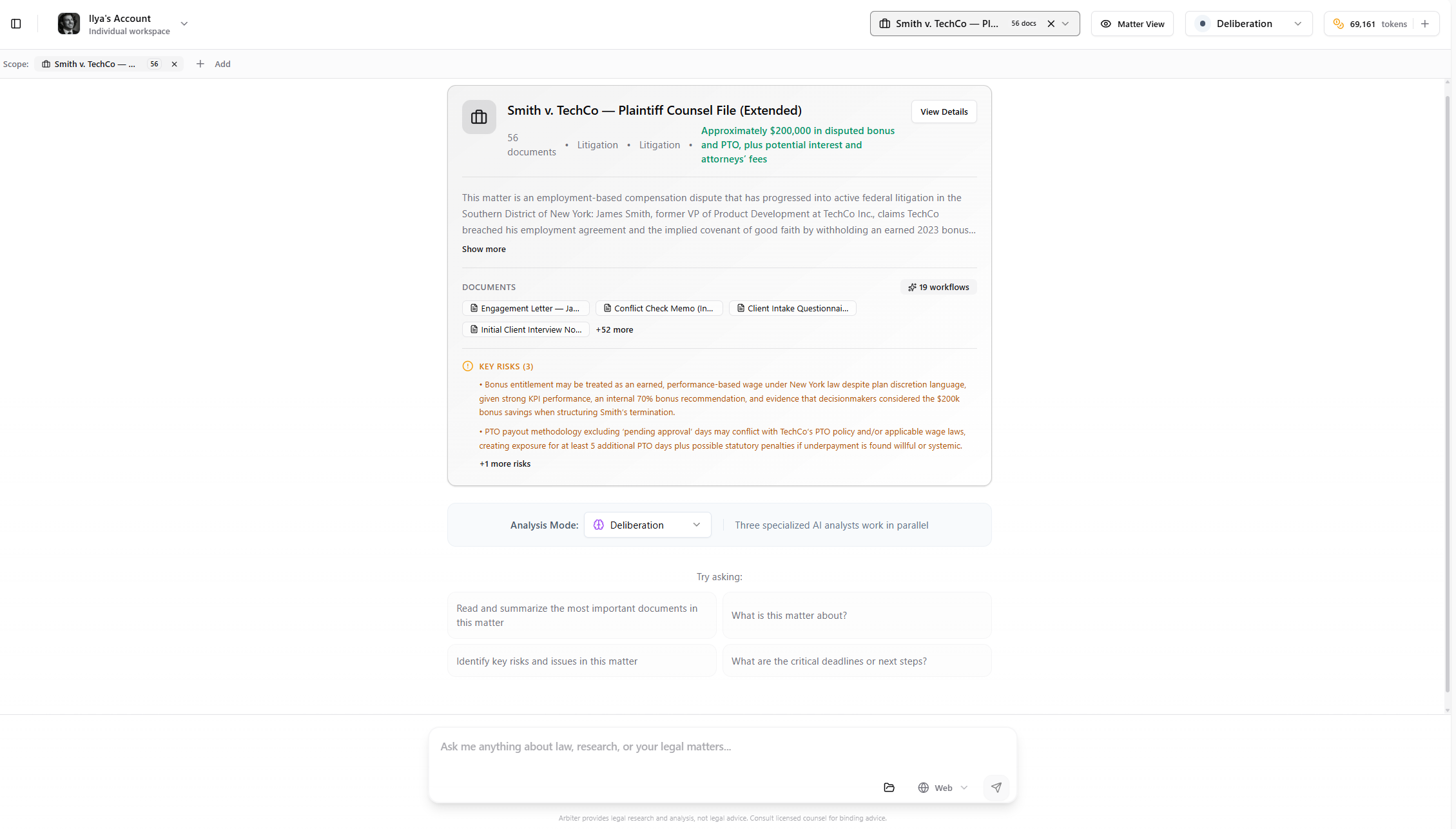
A research chat with a prepared matter selected. Note the matter summary card, document list, identified risks, and suggested questions.
3. Matter Explorer (Full View)
Click “Open in Matter Explorer” from the Dashboard or Matter Library to access the comprehensive Matter view: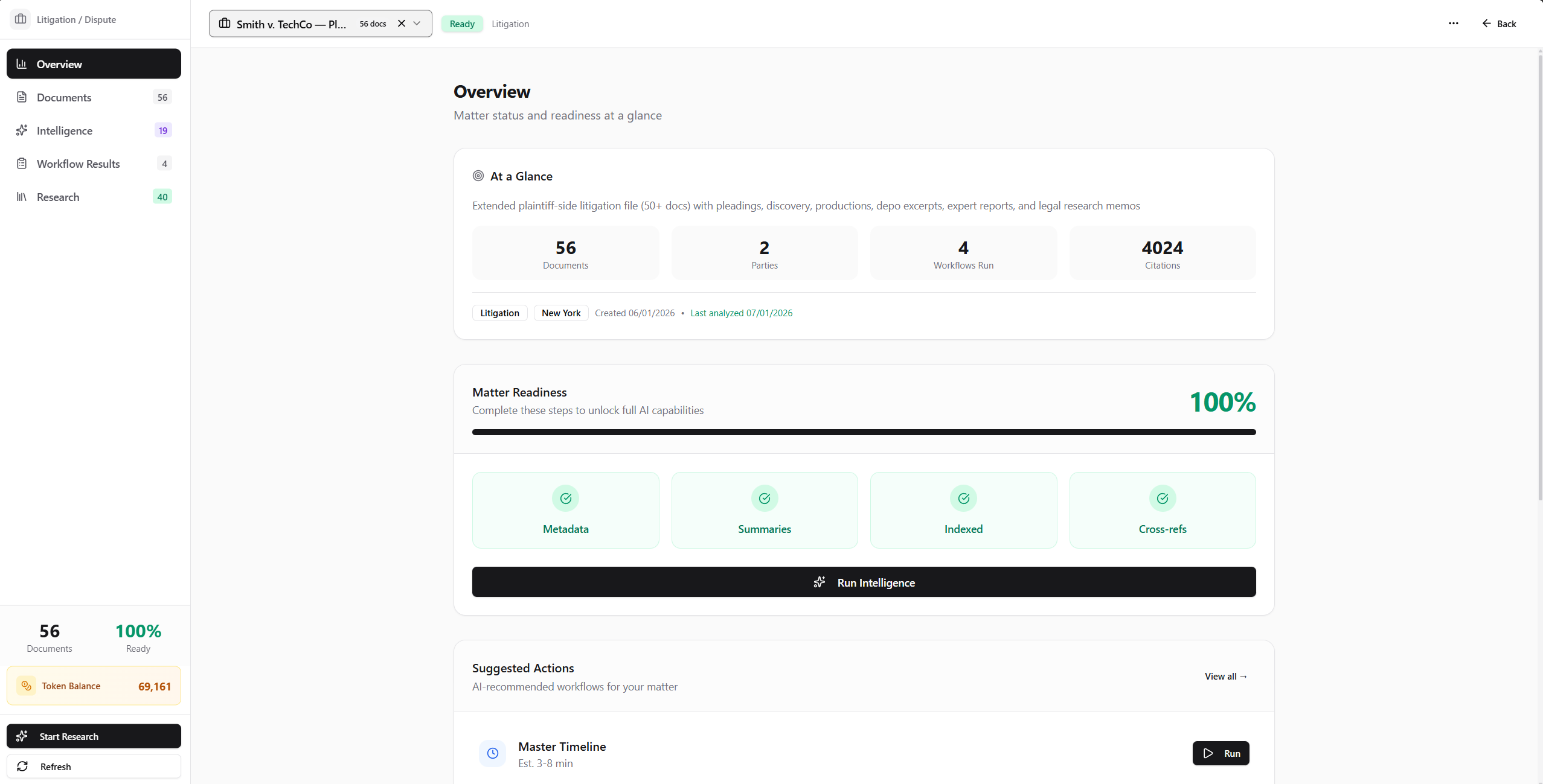
- Overview
- Documents
- Intelligence
- Workflow Results
- Research
- Matter summary and AI-generated intelligence
- Readiness status with detailed breakdown
- Quick stats: documents, parties, workflows run, citations
- Extracted entities: parties, defined terms, key dates
- Suggested workflows based on matter type
Creating a Matter
Step-by-Step with the Matter Wizard
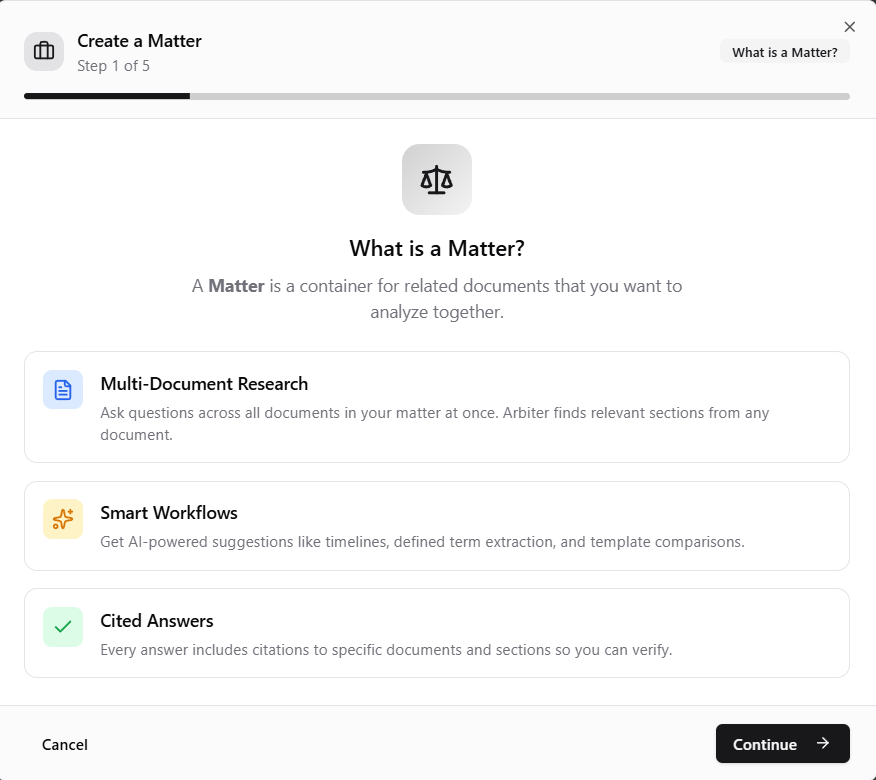
The Matter Wizard guides you through creating a new matter in 5 steps.
1
Open the Wizard
Click “Create Matter” from the Dashboard or sidebar. The wizard explains what a Matter is and its benefits.
2
Add Documents
Either:
- Select from library - Choose existing documents
- Upload new files - Add PDFs, Word docs, or text files (up to 100 files)
3
AI Extraction
Arbiter analyzes your documents and suggests:
- Matter name
- Practice area
- Description
- Key parties
- Jurisdiction
4
Choose Matter Type
Select the type that best describes your matter:
5
Review and Create
Confirm the details and create your matter. A folder is automatically created in your Document Library.
Running Intelligence
Before using advanced workflows or matter context in research, run the Intelligence Scan:1
Open Matter Explorer
Click on your matter from the Dashboard or Matter Library.
2
Check Readiness
The Overview tab shows your matter’s readiness score. Four indicators show what’s complete:
- Metadata - Document types and parties identified
- Summaries - Executive summaries generated
- Indexed - Documents searchable for AI
- Cross-refs - Document relationships mapped
3
Run Intelligence
Click “Run Intelligence” to process any unanalyzed documents. This:
- Extracts metadata from new documents
- Generates executive summaries
- Builds the searchable index
- Identifies cross-references
4
Synthesis (Automatic)
Once all documents are analyzed, Arbiter automatically synthesizes matter-level intelligence:
- Overall matter summary
- Aggregated risk assessment
- Suggested workflows for your matter type
Using Matter Context in Research
Once your matter is prepared, you can leverage it in AI Research:- Open AI Research from the sidebar
- Select your matter from the dropdown at the top
- Ask questions - Arbiter now has context from all documents
Example Questions
Cross-Document Queries:- “What are the termination rights across all agreements in this matter?”
- “Summarize the change of control provisions in each document”
- “Are there any conflicting definitions of ‘Material Adverse Effect’?”
- “What obligations does Acme Corp have across all documents?”
- “List all documents where the Seller has indemnification exposure”
- “What are all the notice periods and deadlines in this transaction?”
- “Create a closing checklist from all documents”
- “What are the top 5 risks across this matter?”
- “Which documents have the most concerning liability provisions?”
Matter Workflows
Matter Mode unlocks 24 AI-powered workflows organized by use case:Core Workflows (All Matters)
Transactional / M&A Workflows
Litigation Workflows
Token Usage
Matter operations are designed to be efficient:Token costs are always displayed before you run any operation. Intelligence Scan shows a detailed breakdown by document.
Best Practices
Run Intelligence First
Always run the Intelligence Scan before using matter context in research or running workflows. This indexes documents and enables accurate retrieval.
Keep Matters Focused
Group truly related documents. A focused 50-document matter performs better than a sprawling 300-document one.
Use Clear Names
Name matters consistently: “Client - Deal Name - Year” makes them easy to find later.
Check Readiness
Review the readiness score before running expensive workflows. Some require full analysis first.
Troubleshooting
Matter context not working in research
Matter context not working in research
Make sure you’ve:
- Selected the matter from the dropdown (not just opened it)
- Run the Intelligence Scan on the matter
- Waited for processing to complete (check readiness score)
Workflow not available or showing 'Locked'
Workflow not available or showing 'Locked'
Workflows require the Intelligence Scan to complete first:
- Check matter readiness in the Overview tab
- Run Intelligence if documents show “Pending” status
- Wait for all documents to reach “Analyzed” state
How do I add more documents to an existing matter?
How do I add more documents to an existing matter?
From the Matter Explorer:
- Go to the Documents tab
- Click “Add Documents” to upload new files or select from your library
- Run Intelligence again to process the new documents
Documents not appearing in matter context
Documents not appearing in matter context
If a document isn’t being found when you query the matter:
- Verify the document is in the matter (check Documents tab)
- Ensure the document was uploaded successfully (no errors)
- Run Intelligence to re-index if recently added
- Check that the document has content (not empty)
Cross-document search missing results
Cross-document search missing results
If Arbiter isn’t finding something you expect:
- Rephrase your question with different terms
- Be more specific about what you’re looking for
- Ask about specific document types or parties
- Check that relevant documents have been analyzed (not just uploaded)
Next Steps
Matter Workflows
Deep dive into the 24 AI workflows available for matters
AI Research
Learn how to use matter context in research sessions