

What is the Document Drafter?
The Document Drafter is your AI legal assistant that lives in the sidebar of every document. You can have a conversation with it just like you would with a colleague. Tell it what you need, ask questions, or request changes to your document. Two ways to use it:- Ask questions about an existing document (What does this clause mean? What are the risks?)
- Create new documents from scratch (Draft me an NDA, Write an employment contract)
Works in any language and jurisdiction. Arbiter uses GitLaw and Meshline to research and draft in 190+ legal systems worldwide. Ask it to draft a German Arbeitsvertrag, analyze a Brazilian contrato de prestação de serviços, or research French case law - it handles local legal terminology and conventions natively.
Getting Started
If Your Document is Empty
When you open a blank document, you’ll see quick-start buttons for common tasks. But don’t feel limited to these - just type whatever you need in the chat box. Arbiter can help with anything: Contracts & Agreements- “Draft a mutual NDA between a tech startup and a potential investor”
- “Create an employment contract for a senior developer in California with equity provisions”
- “Write a SaaS subscription agreement with GDPR-compliant data processing terms”
- “Write a memo analyzing the enforceability of non-competes in Massachusetts after the 2018 reform”
- “Draft an essay on algorithmic sentencing examining the Loomis case and due process implications”
- “Research relevant UK precedents on breach of fiduciary duty in corporate acquisitions”
- “Draft a distribution agreement governed by German law in German”
- “Compare termination rights under English vs New York law for this contract”
- “Research Brazilian consumer protection requirements for software licenses”
If Your Document Has Content
You’ll see quick-start buttons for common actions, but you can ask Arbiter anything about your document: Understanding the Document- “Summarize the key obligations for each party”
- “What happens if either party wants to exit this agreement early?”
- “Explain the indemnification clause like I’m explaining it to my client”
- “Research recent case law on limitation of liability clauses like the one in Section 8”
- “How does this arbitration clause compare to ICC standard terms?”
- “Find precedents where similar force majeure language was tested in court”
- “What are the top 5 risks for our client as the service provider?”
- “Which clauses would you push back on in negotiation?”
- “Is this non-compete enforceable in Texas?”
The Chat Interface
The chat sidebar is where you communicate with Arbiter. Here’s what you’ll see:Message Box
At the bottom of the sidebar, type your questions or instructions. Press Enter or click the send button to submit. You can write in any language - Arbiter responds in the language you use. Example messages:- “What does the indemnification clause mean in plain English?”
- “Research recent UK cases on unfair contract terms in B2B agreements”
- “Draft a force majeure clause that covers pandemics and supply chain disruptions”
- “Rewrite Section 3 to be more favorable to the licensor”
- “Compare this limitation of liability to what we accepted in the Acme deal”
- “Rédigez une clause de non-concurrence conforme au droit français” (French)
- “Erstellen Sie eine Geheimhaltungsvereinbarung nach deutschem Recht” (German)
AI Responses
Arbiter’s responses appear in the chat. Each response includes:- Copy button - Copy the response to your clipboard
- Research card - When Arbiter researches legal sources, you’ll see an expandable card showing what sources were found
Settings (Below the Message Box)
AutoDraft Toggle When turned on, Arbiter automatically drafts all sections of your document one after another without stopping. When off, you review each section before moving to the next.AutoDraft only becomes active after Arbiter generates a document outline. Complete the requirements form and click “Create Document Outline” first - then the toggle is available.
- Basic - Fast, direct responses
- Advanced - Arbiter shows its thinking process and provides deeper analysis (uses more of your AI credits)
Asking Questions About Your Document
Simply type your question in natural language. Arbiter reads the entire document before responding, so you don’t need to copy and paste specific sections.Understanding & Explanation
- “What does Section 5 actually require us to do?”
- “Explain the liquidated damages clause in plain English”
- “Walk me through what happens if the supplier fails to deliver on time”
- “Summarize all the deadlines and notice periods in this agreement”
Risk Analysis
- “What are the biggest risks for us as the buyer?”
- “Which clauses favor the other party disproportionately?”
- “Is there anything unusual or concerning in this contract?”
- “What’s our maximum liability exposure under this agreement?”
Legal Research
- “Research recent cases where similar indemnification language was challenged”
- “Find precedents on enforcing this type of non-solicitation clause”
- “What do courts in Delaware say about this standard of care language?”
- “Are there any regulatory issues with this data processing clause under GDPR?”
Negotiation Strategy
- “Which clauses should we push back on in negotiation?”
- “Suggest alternative language for the limitation of liability”
- “How could we make the termination rights more balanced?”
- “What’s the market standard for this type of IP assignment clause?”
Comparative Analysis
- “How does this compare to the last MSA we signed with a similar vendor?”
- “Is this indemnification broader or narrower than typical market terms?”
- “Compare this governing law clause to what we usually accept”
Creating a New Document
When you ask Arbiter to create a document, it follows a structured process:Step 1: Requirements Form
After you describe what you need, Arbiter generates a customized form asking for the details it needs. For example, for a contract, this might include:- Parties - Who is involved and their roles
- Jurisdiction - Which law governs the agreement
- Key terms - Duration, value, special requirements
- Specific provisions - What clauses to include
- Thesis statement - Your main argument
- Word count - Target length
- Citation style - Bluebook, OSCOLA, APA, etc.
- Key issues - Topics to cover
Step 2: Blueprint Review
Arbiter creates a detailed outline showing:- Executive summary - What the document will accomplish
- Key terms summary - Parameters, values, and their significance
- Document structure - All proposed sections with word allocation
- Special considerations - Tailored guidance based on your requirements
- Risk considerations - Potential issues to watch for
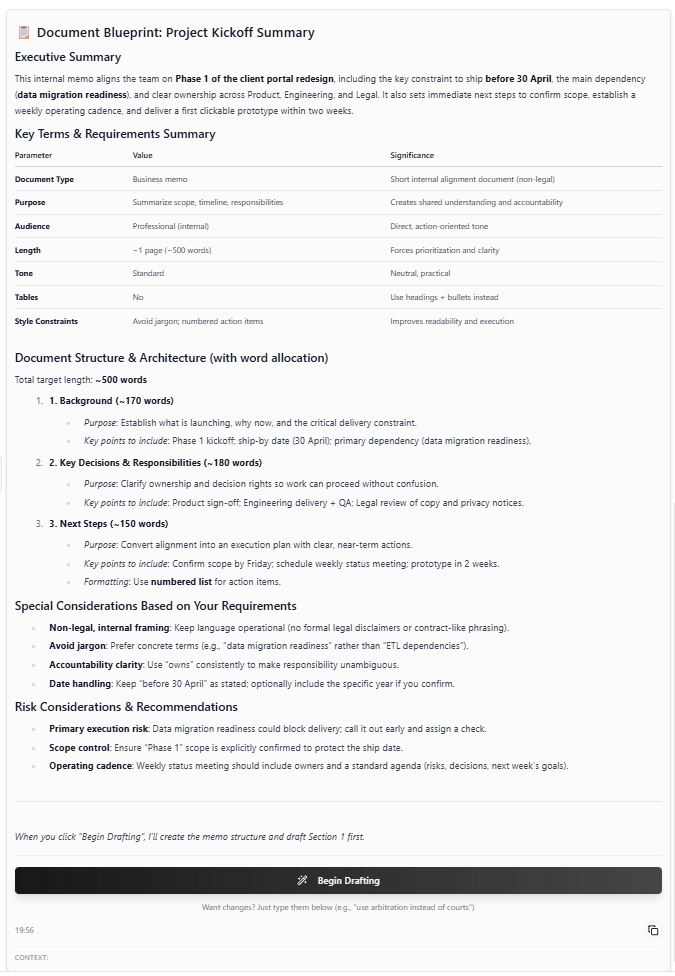
Example blueprint for an internal memo
- “Add a section on data protection”
- “Remove the non-compete section”
- “Make Section 2 longer and more detailed”
- “Use arbitration instead of courts”
Step 3: Drafting
Once you approve the blueprint, Arbiter begins drafting. You have two options: Manual Mode (AutoDraft OFF)- Arbiter drafts one section at a time
- After each section, it explains what it wrote and why
- You review and say “continue” or “next” to proceed
- You can request changes before moving on
- Arbiter drafts all sections continuously
- You review the complete document when it’s finished
- Faster, but less control during the process
Step 4: Refinement
After drafting, you can:- Edit directly in the document canvas
- Ask Arbiter to make changes (“Make the confidentiality section stronger”)
- Request expansions (“Add more detail to the definitions”)
- Have sections regenerated (“Rewrite the termination clause”)
Legal Research (GitLaw + Meshline)
Arbiter has access to GitLaw and Meshline, giving it the ability to research legal sources across 190+ jurisdictions in any language.What It Can Research
- Case law - Court decisions, judgments, and judicial reasoning
- Statutes & regulations - Legislation, codes, and regulatory guidance
- Academic sources - Law review articles, journal papers, scholarly commentary
- Government materials - Agency guidance, policy documents, reform proposals
How It Works
- You ask a question or request research
- Arbiter generates targeted search queries (in the appropriate language for each jurisdiction)
- GitLaw searches legal databases and returns verified sources
- Results appear in expandable research cards in the chat
- When drafting, Arbiter cites these sources in your chosen format
Citation Styles
Arbiter formats citations according to your preference:- Bluebook - US legal citation standard
- OSCOLA - Oxford standard for UK/Commonwealth
- APA/Harvard - Academic papers
- Chicago - Footnote-based citation
- Local formats - German, French, and other jurisdiction-specific styles
Multi-Language Research
Arbiter researches in the native legal language of each jurisdiction for better results:- German law: Searches for “BGB § 823 Schadensersatz Rechtsprechung” not “German tort law”
- French law: Searches “Code civil article 1240 responsabilité délictuelle”
- Spanish law: Searches “Código Civil artículo 1902 responsabilidad extracontractual”
- EU law: Searches both member state languages and English EU sources
Editing Your Document
Once content exists in your document, you can ask Arbiter to make changes:Simple Edits
- “Change ‘Company’ to ‘Acme Corporation’ throughout”
- “Update all deadlines to 30 days”
- “Fix the typo in Section 3”
Section Changes
- “Expand the definitions section”
- “Shorten the indemnification clause”
- “Make the termination provisions mutual”
- “Add GDPR compliance language to data protection”
Structural Changes
- “Add a new section on intellectual property after Section 5”
- “Delete the non-compete section”
- “Move the dispute resolution clause to the end”
Example Workflows
Drafting an International Contract
- Open a new document
- Type: “Draft a distribution agreement between a UK manufacturer and a German distributor, governed by German law, in German”
- Fill in the requirements form (parties, territory, exclusivity, payment terms)
- Review the proposed outline (Arbiter will structure it according to German legal conventions)
- Say “proceed” to begin drafting
- Arbiter researches German distribution law and drafts with appropriate legal terminology
Researching for a Brief
- Open a new document
- Type: “Research and draft a brief on whether AI-generated evidence is admissible under the Federal Rules of Evidence, citing recent case law”
- Fill in the form (court, jurisdiction, key arguments)
- Arbiter searches GitLaw for relevant precedents
- Review the research cards showing sources found
- Approve the outline and let Arbiter draft with inline citations
Analyzing a Cross-Border Deal
- Open the contract document
- Type: “Analyze this acquisition agreement from the buyer’s perspective, focusing on representations and warranties”
- Review Arbiter’s findings on risk allocation
- Ask: “Research how Delaware courts have interpreted similar materiality qualifiers”
- Request: “Compare this indemnification cap to market standards for deals of this size”
- Follow up: “Draft alternative language for the knowledge qualifier that’s more buyer-friendly”
Writing a Comparative Law Essay
- Open a new document
- Type: “Write an academic essay comparing data protection enforcement under GDPR vs CCPA, with a focus on private rights of action”
- Select OSCOLA citation style and 5,000 word target
- Arbiter researches both EU and US sources
- Review the outline covering regulatory frameworks, enforcement mechanisms, and case studies
- Enable AutoDraft to generate all sections with citations
Quick Contract Review
- Open an existing contract
- Type: “Give me a 2-minute summary of this agreement - who does what, key deadlines, and main risks”
- Review the summary
- Ask: “Which three clauses should I focus on in negotiation?”
- Request: “Draft a redline showing how to make the termination clause mutual”
Tips for Best Results
Be Specific
The more detail you provide, the better Arbiter’s output. Include parties, jurisdiction, key terms, and any special requirements.
Specify Jurisdiction and Language
Arbiter works in any jurisdiction and language. Be explicit: “Draft this under California law” or “Write this in German following German legal conventions.”
Ask for Research
Don’t just draft - ask Arbiter to research first. “Research recent precedents on this issue” gives you verified sources to cite.
Review Everything
Arbiter provides a strong foundation, but always review AI-generated content. Legal documents require professional judgment.
Iterate
Don’t hesitate to ask for changes. Say “make it more formal,” “add more detail,” or “research alternatives” until you’re satisfied.
Use Advanced Mode for Complex Work
For high-stakes documents, nuanced legal analysis, or multi-jurisdictional issues, switch to Advanced mode for deeper reasoning.
Understanding AI Credits
Different actions use different amounts of your AI credits:
A typical 10-section contract uses approximately 80-150 tokens. Complex documents with extensive research may use 150-300 tokens.
Troubleshooting
Arbiter isn't understanding my request
Arbiter isn't understanding my request
Try being more specific. Instead of “fix this contract,” say “add a 30-day cure period before termination for breach.”
The generated content is too generic
The generated content is too generic
- Provide more detail in the requirements form
- Add reference documents for Arbiter to follow
- Use Advanced reasoning mode
- Ask Arbiter to make it more specific to your industry or situation
I can't find the AutoDraft toggle
I can't find the AutoDraft toggle
The AutoDraft toggle is at the bottom of the chat, next to “Advanced Reasoning”. It only becomes active after Arbiter generates a document outline. Complete the requirements form and click “Create Document Outline” first.
Research isn't finding relevant sources
Research isn't finding relevant sources
- Make sure you’ve specified the correct jurisdiction
- For non-English jurisdictions, Arbiter may need to search in the local language
- Try mentioning specific cases or statutes you want cited
Next Steps
Document Analysis
Learn how to analyze contracts for risks and issues
Canvas Features
Explore the document editor’s full capabilities