

Overview
Arbiter’s OCR (Optical Character Recognition) processing extracts text from scanned documents, images, and PDFs that don’t have selectable text. This enables full analysis and AI features on documents that would otherwise be unreadable.OCR Pricing: 5 tokens per page (compared to 1 token per page for standard text-based documents).
When to Use OCR
Use OCR processing for:- Scanned PDFs - Documents scanned from paper
- Image files - Photos of documents (PNG, JPG, etc.)
- Protected PDFs - Some PDFs with restricted text selection
- Old documents - Archived materials in image format
Automatic Detection
Arbiter automatically detects if a PDF likely needs OCR by analyzing:- Text density per page
- Average words extracted
- Image-to-text ratio
- Alerts you that OCR may be needed
- Automatically enables OCR option
- Shows updated cost estimate
Uploading Documents with OCR
Single Document Upload
1
Click Upload Document
From dashboard or sidebar
2
Select Your File
Choose your PDF, image, or document
3
Review OCR Detection
Arbiter shows if OCR is recommended:
- “Likely scanned document detected”
- “OCR recommended for best results”
4
Enable/Disable OCR
Toggle OCR based on your needs:
- Enabled = Full text extraction (5 tokens/page)
- Disabled = Process as-is (1 token/page)
5
Confirm Cost
Review page count and total cost before proceeding
6
Upload
Click upload to begin processing
Matter Upload with OCR
When uploading documents to a Matter:1
Open Matter Wizard or Add Documents
Start the document addition process
2
Drop Files
Each file is analyzed individually
3
Per-File OCR Settings
Configure OCR for each file:
- Auto-enabled for likely scanned documents
- Can override per file
4
Review Total Cost
See combined cost for all documents
5
Upload All
Process all documents with configured settings
OCR Processing Options
Processing Modes
- Anchor-Only (Default)
- Full Processing
- Extracts text and identifies section structure
- Faster processing
- Lower cost
- Good for standard document analysis
Attestation Extraction
OCR in Full Processing mode identifies and extracts:- Signatures - Handwritten signatures with location
- Stamps - Official stamps, seals, notary marks
- Certifications - Notary certificates, apostilles
- Initials - Page initials and annotations
Attestations are displayed in distinctive amber-themed cards with clear visual indicators showing what was detected and where.
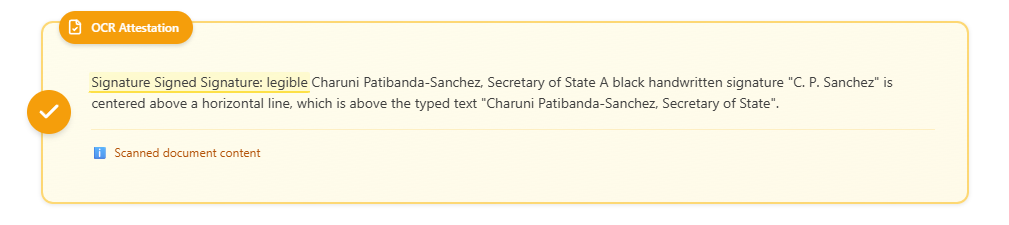
An attestation card showing a detected signature with description of the signatory and signature style.
Understanding OCR Results
Text Quality
OCR quality depends on:Review Recommendations
After OCR processing:- Spot-check critical sections - Verify important text extracted correctly
- Check numbers and dates - These are often OCR weak points
- Review parties and names - Ensure proper nouns are correct
- Validate tables - Complex tables may need manual review
Cost Considerations
Standard vs. OCR Processing
OCR processing costs 5 tokens per document, regardless of page count. This covers the AI-powered text extraction and cleanup.
Pre-Upload Estimation
Arbiter shows costs before you upload:- Whether the document requires OCR
- Total estimated cost
- Requires explicit confirmation before processing
Troubleshooting
OCR text is garbled or incorrect
OCR text is garbled or incorrect
- Check original scan quality
- Try uploading a higher-resolution scan
- Some handwritten text may not OCR well
- Consider manual correction for critical sections
OCR not detecting all text
OCR not detecting all text
- Very faint text may not extract
- Multi-column layouts can be challenging
- Unusual fonts may have issues
- Ensure document isn’t encrypted/protected
Document uploaded without OCR when needed
Document uploaded without OCR when needed
- Delete the document
- Re-upload with OCR enabled
- You cannot retroactively add OCR
OCR taking very long
OCR taking very long
- Large documents (100+ pages) take time
- Complex layouts slow processing
- High-resolution images take longer
- Typical: 1-2 minutes per 10 pages
Attestations not appearing
Attestations not appearing
- Ensure “Full Processing” mode was used
- Attestations must be clearly visible in scan
- Very stylized signatures may not detect
Best Practices
Scan at High Resolution
300 DPI minimum for text documents. Higher resolution = better OCR accuracy.
Straighten Before Scanning
Ensure documents are not skewed. Many scanners have auto-straightening features.
Use Contrast
Good black text on white background works best. Avoid colored papers when possible.
Verify Critical Content
Always manually verify numbers, dates, and party names after OCR processing.
Supported File Types
For OCR Processing
Standard Processing (No OCR Needed)
Next Steps
Document Analysis
Analyze your OCR’d documents
Matter Mode
Add scanned documents to matters