

Overview
Arbiter’s version control system tracks every change to your documents, allowing you to:- See complete change history
- Compare any two versions side-by-side
- Restore previous versions instantly
- Track who made changes and when
Version control is automatic. Every significant change creates a new version without manual action.
How Versioning Works
Automatic Versioning
Arbiter automatically saves versions when:- You make significant changes (>50 characters modified)
- The document is idle for 30 seconds after edits
- You navigate away from the document
- The session ends
Manual Versioning
You can create named versions at important milestones:1
Click Save Version
Use the keyboard shortcut Ctrl/Cmd + S or click “Save Version” in the menu
2
Add Version Note (Optional)
Describe what changed: “Final draft after client review”
3
Version Created
Manual versions get a purple “Manual” badge
Viewing Version History
1
Open Document Menu
Click the menu icon (three dots) in the document header
2
Select Version History
Opens the version history panel
3
Browse Versions
See all versions with:
- Timestamp (when created)
- Type (Auto or Manual)
- Author (who made changes)
- Word count change
- Version note (if manual)
Version List
Each version shows:Comparing Versions
Compare any two versions to see exactly what changed:1
Open Version History
Access from document menu
2
Select Two Versions
Click the checkbox next to each version you want to compare
3
Click Compare
Opens the comparison view
4
Review Differences
Changes are highlighted:
- Green = Additions
- Red = Deletions
Comparison Views
- Side-by-Side
- Inline
Older version on left, newer on right. Changes highlighted in both.
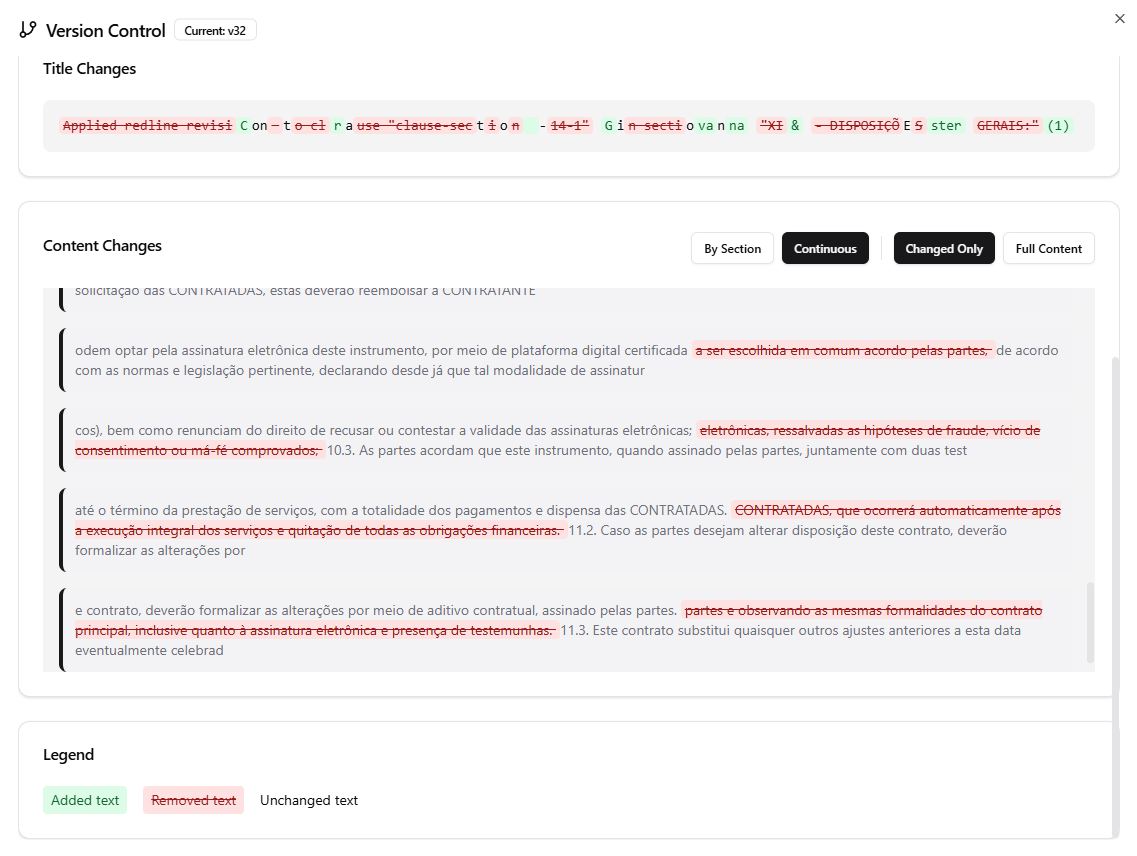
The inline comparison view showing title changes, content changes by section, and a legend for added/removed text.
Restoring Previous Versions
To restore an earlier version:1
Open Version History
Find the version you want to restore
2
Click Restore
Select “Restore this version”
3
Confirm
Acknowledge that current content will be replaced
4
Restored
Document content reverts to selected version
Restoring creates a new version with the restored content. You don’t lose any history, and you can always restore back to the version before restoration.
Version Metadata
Each version captures:- Content - Full document text at that point
- Timestamp - Exact time of version creation
- Author - User who made changes
- Type - Auto or Manual
- Note - User-provided description (manual only)
- Word Count - Document length
- Character Count - Detailed change metrics
Best Practices
Manual Versions at Milestones
Create manual versions at key points: initial draft, post-review, final. This makes history easier to navigate.
Use Descriptive Notes
“Final draft after Smith review” is more useful than “updated” when looking back months later.
Compare Before Accepting Changes
Before accepting counterparty revisions, compare their version with your last to see exactly what changed.
Restore Strategically
Don’t restore just to see old content. Use compare view first. Only restore when you actually want to revert.
Version Control with Collaboration
When multiple people work on a document:- Each person’s changes create versions attributed to them
- Version history shows all collaborators’ contributions
- Compare any two versions regardless of author
- Restore to any version (with appropriate permissions)
Storage and Limits
- Automatic versions: Retained for 90 days
- Manual versions: Retained indefinitely
- Version count: No limit on number of versions
- Storage: Versions don’t count against document limits
Automatic versions older than 90 days are cleaned up to save storage. Important versions should be marked as manual.
Troubleshooting
Can't find a version I expected
Can't find a version I expected
- Check the date range filter
- Automatic versions may have been cleaned up (>90 days)
- Very small changes (under 50 chars) may not create versions
Version compare not loading
Version compare not loading
- Ensure stable internet connection
- Try refreshing the page
- Compare different versions to isolate the issue
Restore didn't work
Restore didn't work
- Check if you have edit permissions
- Verify the restore was confirmed
- Check version history (restoration creates a new version)
Next Steps
Redlining
Track changes and revisions
Document Canvas
Full editing features