

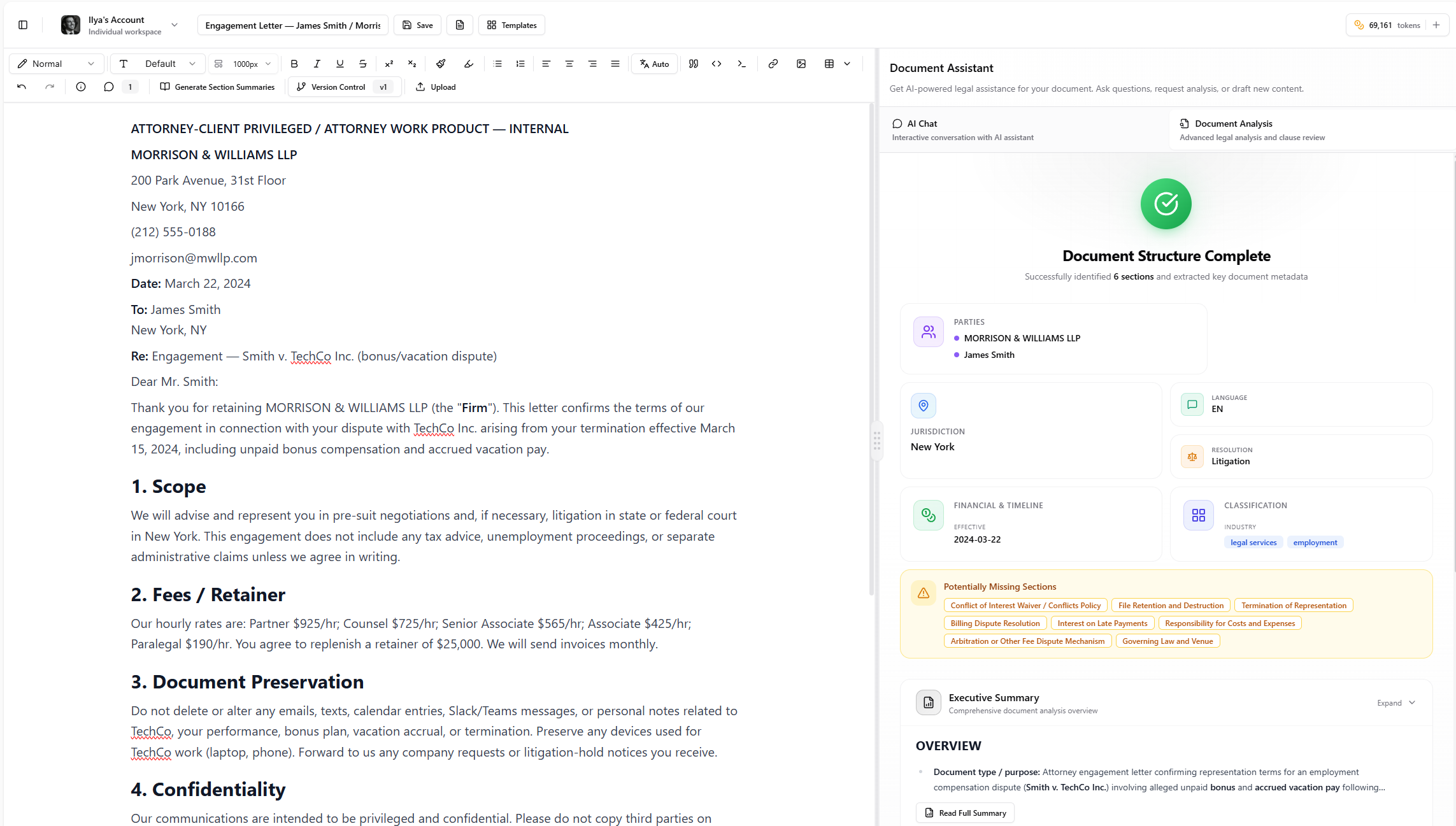
What is the Canvas?
The Document Canvas is where you work with your documents in Arbiter. It’s a rich text editor similar to Microsoft Word or Google Docs, but with AI capabilities built in. You can:- Edit and format text like any word processor
- Right-click to access AI tools that improve your writing
- Upload documents by dragging them onto the canvas
- Track versions and compare changes over time
The Toolbar
The toolbar at the top gives you quick access to formatting and tools.Text Style
Text Formatting
Lists and Alignment
Text Direction
For documents in Hebrew, Arabic, or other right-to-left languages:- Auto (recommended) - Arbiter detects the language automatically
- LTR - Force left-to-right
- RTL - Force right-to-left
Insert Elements
Tables
Click the Table button to access full table controls:- Insert Table - Choose size (2x2 up to 5x5, or custom)
- Add/Delete Rows - Insert rows above or below
- Add/Delete Columns - Insert columns left or right
- Merge/Split Cells - Combine or divide cells
- Toggle Headers - Set header row or column
- Delete Table - Remove the entire table
Other Tools
Right-Click Menu
Right-click anywhere in the document to access a context menu with formatting options and AI tools.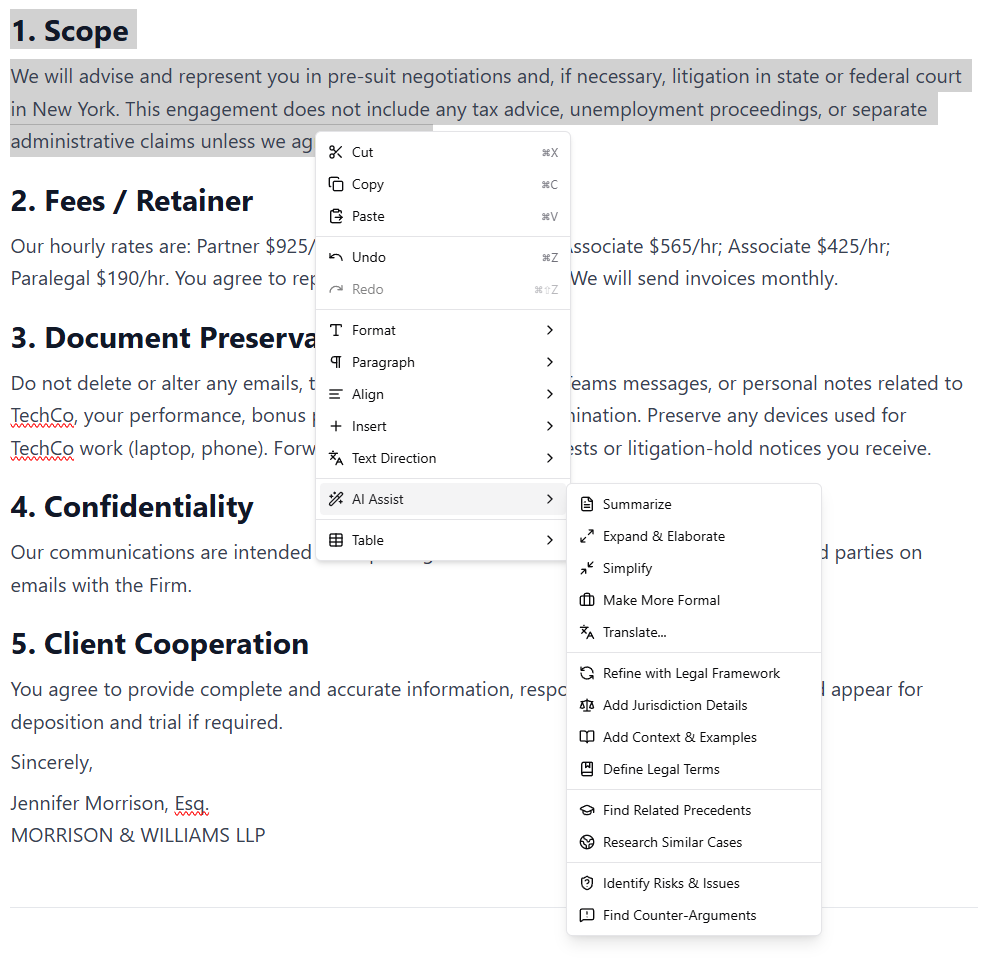
Right-click menu with AI Assist options expanded
Standard Editing
- Cut, Copy, Paste - Standard clipboard operations
- Undo, Redo - Undo or redo changes
- Format - Bold, italic, underline, highlight, clear formatting
- Paragraph - Change to heading, list, or quote
- Align - Left, center, right, or justify
- Insert - Add links, images, or horizontal rules
- Text Direction - Set LTR, RTL, or auto
AI Assist
The AI Assist menu lets you enhance selected text with AI. Select some text, right-click, and choose from: Writing Assistance
Legal Enhancement
Legal Research
Risk Analysis
Uploading Documents
You can bring existing documents into Arbiter in two ways:Drag and Drop
Simply drag a file from your computer onto the canvas. Arbiter accepts:- PDF - Including scanned documents (OCR enabled)
- DOC / DOCX - Microsoft Word documents
- TXT - Plain text files
- MD - Markdown files
- HTML - Web pages
Upload Button
Click the Upload button in the toolbar to open the file picker.What Happens During Upload
When you upload a document, Arbiter:- Extracts the text and preserves formatting
- Identifies document structure (headings, sections, lists)
- Detects tables and preserves their layout
- Prepares the document for analysis
- Opens it in the canvas ready for editing
Document Properties
Click the Properties button (info icon) in the toolbar to see:- Title - Document name
- Type - Legal Contract, Brief, Memo, etc.
- Language - Detected document language
- Word Count - Total words in the document
- Reading Time - Estimated time to read
- Created / Updated - Timestamps
- Version - Current version number
Section Summaries
Click Section Summaries in the toolbar to:- Generate Summaries - Arbiter reads each section and creates a brief summary
- View Structure - See your document’s outline at a glance
- Navigate Sections - Click any section to jump to it
- Download Summaries - Export as a document outline
- Deadlines - Time-sensitive provisions
- Restrictions - Limitations and prohibitions
- Obligations - What each party must do
- Rights - What each party is entitled to
- Definitions - Key terms defined
Version Control
Arbiter automatically saves versions of your document as you work.Automatic Versions
When you make significant changes (more than 50 characters), Arbiter saves an auto-version. These appear with an orange “Auto” badge.Manual Versions
Before major edits, click Save Version to create a checkpoint. These appear with a purple “Manual” badge. You can add a note describing what changed.Comparing Versions
- Click the Version Control button in the toolbar
- Select two versions to compare
- See changes highlighted:
- Green - Text that was added
- Red - Text that was deleted
- Click Restore on any version to revert to it
Analysis Flags
After running document analysis, you’ll see flags highlighting issues in your document.Viewing Flags
- Click the Flags button in the toolbar to show/hide flags
- Flags appear as colored highlights in the text
- Click any flag to see details and suggested fixes
Flag Importance
Use the importance slider in the Flags popover to filter what you see:Flags Not in Text
Some issues relate to the document as a whole rather than specific text. These appear as a badge count next to the Flags button. Click to see what’s missing or needs attention.Keyboard Shortcuts
Text Formatting
Headings
Lists
Text Direction
Tips for Lawyers
Use Headings Consistently
Structure your document with H2 for major sections and H3 for subsections. This helps Arbiter analyze your document accurately and makes navigation easier.
Right-Click for AI Help
Select any text and right-click to access AI tools. Need to simplify complex language? Identify risks? Find precedents? It’s all in the right-click menu.
Save Versions at Milestones
Before major revisions or sending a draft for review, save a manual version. This lets you easily compare changes or revert if needed.
Adjust Document Width
For comfortable reading, try narrower widths (600-800px). For documents with wide tables, use wider settings or full width.
Troubleshooting
Document not saving
Document not saving
- Check your internet connection
- Try refreshing the page
- Your work is auto-saved, but you can manually save a version to be sure
Upload taking too long
Upload taking too long
- Large PDFs (100+ pages) may take several minutes
- Scanned documents require OCR processing, which is slower
- Try breaking very large documents into smaller files
Formatting looks wrong after upload
Formatting looks wrong after upload
- Complex layouts may not convert perfectly
- Use the toolbar to fix any formatting issues
- Tables and basic formatting should preserve correctly
AI Assist not working
AI Assist not working
- Make sure you have text selected before right-clicking
- Check that you have tokens available
- Try refreshing the page if options are grayed out
Flags not showing
Flags not showing
- Run document analysis first (from the Analysis panel)
- Make sure the Flags button is toggled on
- Check the importance filter isn’t hiding lower-priority flags
Next Steps
Document Analysis
Analyze your documents for risks and issues
Document Drafter
Create new documents with AI assistance
Version Control
Learn more about version history and comparison
Keyboard Shortcuts
See all available shortcuts